Suno BPM: Set Tempo and Check the Result in 2026
Suno BPM problems usually surface when you put a promising song under a metronome: the opening fits, the chorus feels wrong, or the detector reports twice the tempo you expected. A small mismatch becomes expensive when you have already edited a video or recorded another instrument. This guide combines Suno's current documentation with simple timing calculations to help you choose a target, measure the result and decide what to change.

- The short version: A Suno BPM instruction describes your target; the exported recording still needs to be measured.
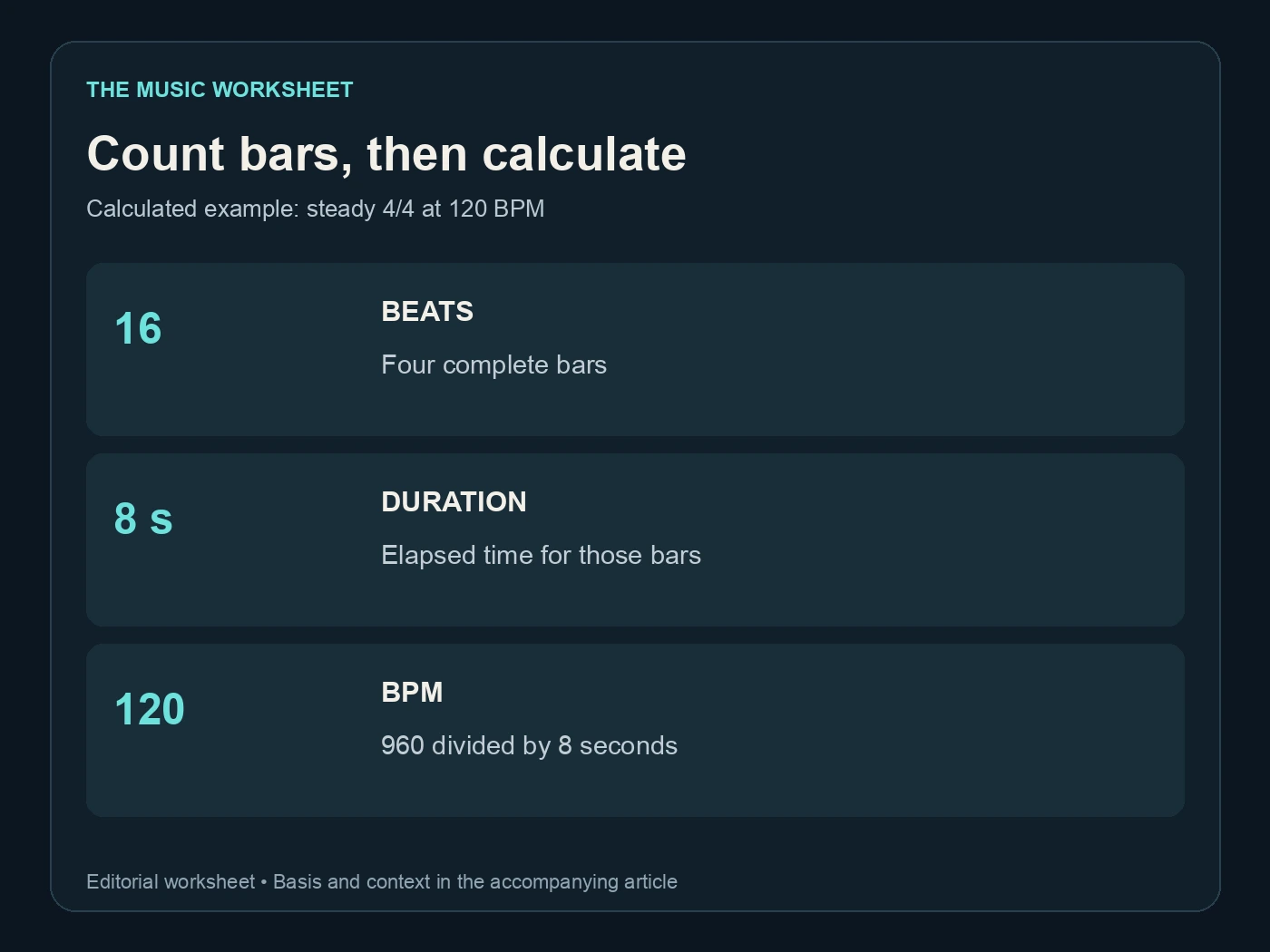
- At 120 BPM in 4/4, four bars last 8 seconds. Use several passages to distinguish a wrong reading from real tempo drift.
- Suno Sounds has a dedicated BPM setting for loops. A full song and a short loop are different production jobs.
- WaveQuake is useful for exploring alternative arrangements before you commit to the recording you will edit.
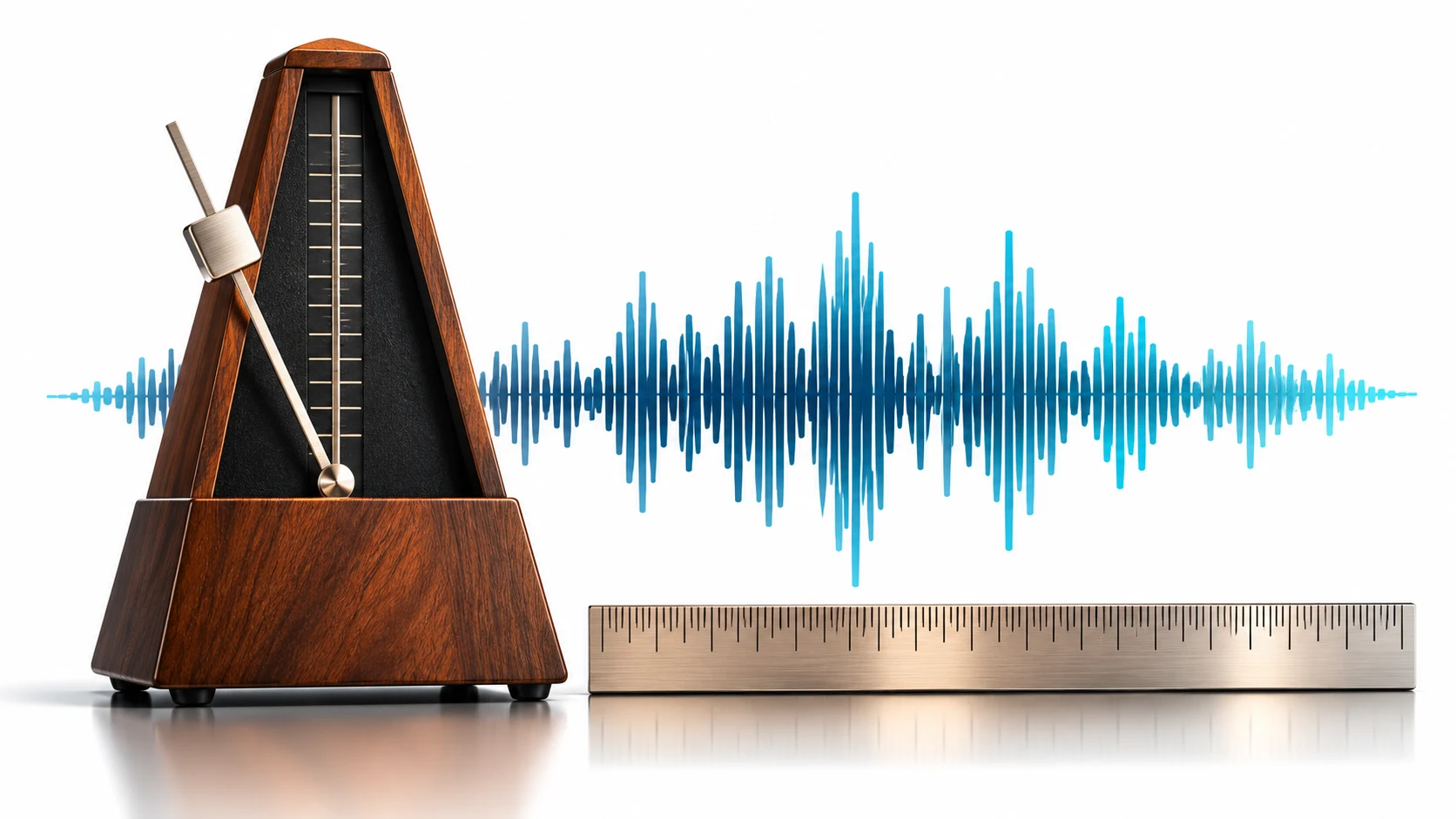
Set a musical target before entering a number
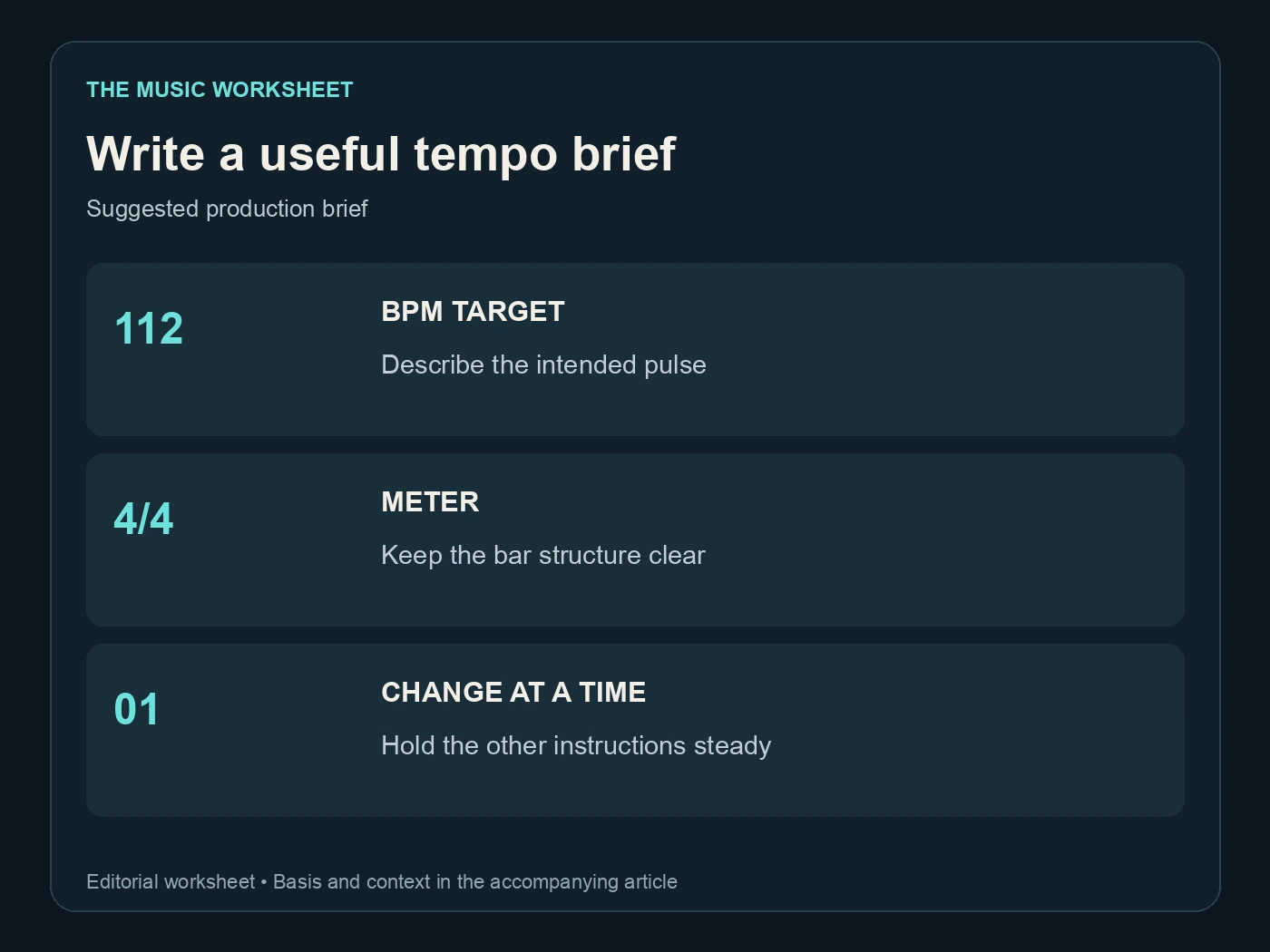
Start with the job the beat must do. A relaxed walking rhythm, a busy dance groove and a slow half-time chorus can share overlapping tempo numbers while feeling completely different. Write the meter, pulse and main rhythmic instrument alongside your BPM instruction.
For example, try this original production brief: “112 BPM, steady 4/4, restrained indie-pop drums, a clear quarter-note pulse, no tempo changes, sparse verse and fuller chorus.” It gives you something concrete to judge. It is a suggested prompt, not a command that forces sample-accurate timing.
Keep the first draft narrow. “Slow but energetic, fast drums, rubato piano, constant beat, dramatic tempo changes” contains competing requests. If rubato is the musical point, do not choose that draft for a tightly synchronized video without allowing time for editing.
Our Suno prompt guide covers the broader prompt structure. For this exercise, hold your lyric and instrumentation steady while changing one tempo instruction. Save the prompt next to each take so you can compare what you asked for with what you received.
Understand the difference between songs and Sounds
Suno's current V6 models offer different creative starting points. The core model is positioned around control, Wild around experimentation and Mini around faster exploration. Those descriptions do not establish an exact tempo accuracy rate.
A full-song prompt is also different from the Suno Sounds interface. Sounds explicitly offers One Shot and Loop types, with BPM and key settings. Use that route when you need a repeating musical element; use a full-song workflow when you need verses, a chorus and a developing arrangement.
Suno describes Sounds as experimental and notes that loops can include more of a musical arrangement than you expected. Listen for the instrument you requested, the actual pulse and the join. A BPM field is useful input, but it does not replace checking the generated audio.
If your project already has a strict click track, start with a short region before committing to a whole song. That lets you reject an unsuitable rhythmic feel while the decision is still cheap. Our V6 arrangement guide explains how to separate section design from broad genre language.
Measure Suno BPM across several passages
Import a permitted download into your audio editor and locate a clear downbeat. Count four complete bars from that point, not four drum hits. In 4/4, four bars contain 16 quarter-note beats. Divide 960 by the elapsed seconds to estimate BPM.
The following values are arithmetic examples for a steady 4/4 recording. They are not measurements of Suno output.
| Target BPM | One beat | Four bars | Eight bars |
|---|---|---|---|
| 80 | 0.75 s | 12 s | 24 s |
| 96 | 0.625 s | 10 s | 20 s |
| 120 | 0.5 s | 8 s | 16 s |
| 128 | 0.46875 s | 7.5 s | 15 s |
Repeat the measurement near the beginning, in the middle and near the final chorus. If the values agree but the software disagrees, investigate the detector's beat interpretation. If the timing gradually changes, a single global tempo adjustment may leave later passages out of alignment.
Measure from transient to transient where possible. A long pad fade gives an imprecise starting point. Keep a note of the exact timestamps you used, the bar count and whether the recording contains a pickup before the first full bar.
Check half-time and double-time readings
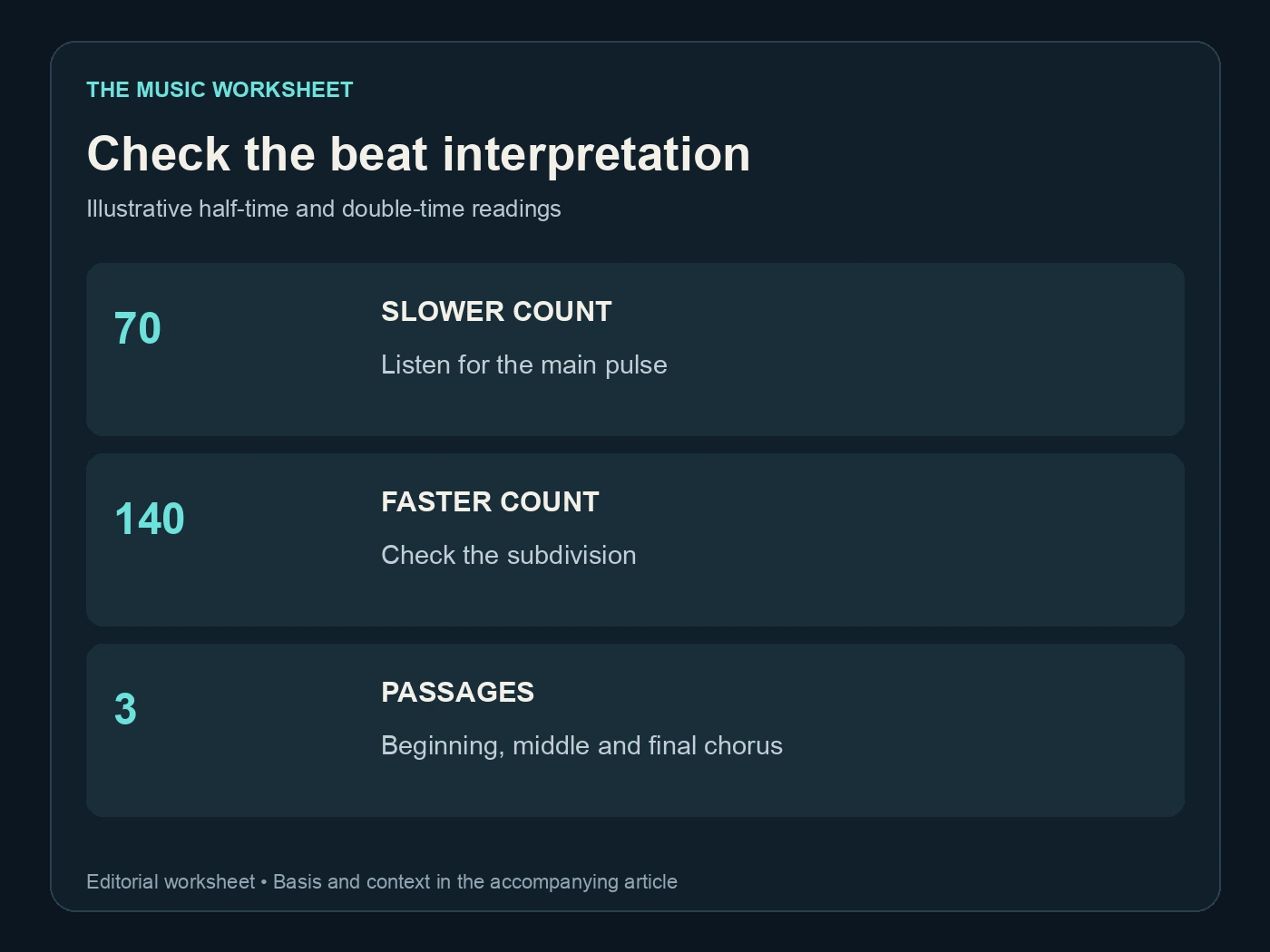
A detector can hear a song at 70 BPM while you count it at 140 BPM. That does not automatically mean either reading is broken. The software may be following a different level of the rhythm.
Count along with the kick, snare and phrase endings. In a half-time groove, the backbeat may feel much slower than the hi-hat subdivision. Ask which count gives you a useful bar grid for the arrangement. Then test that grid over several sections.
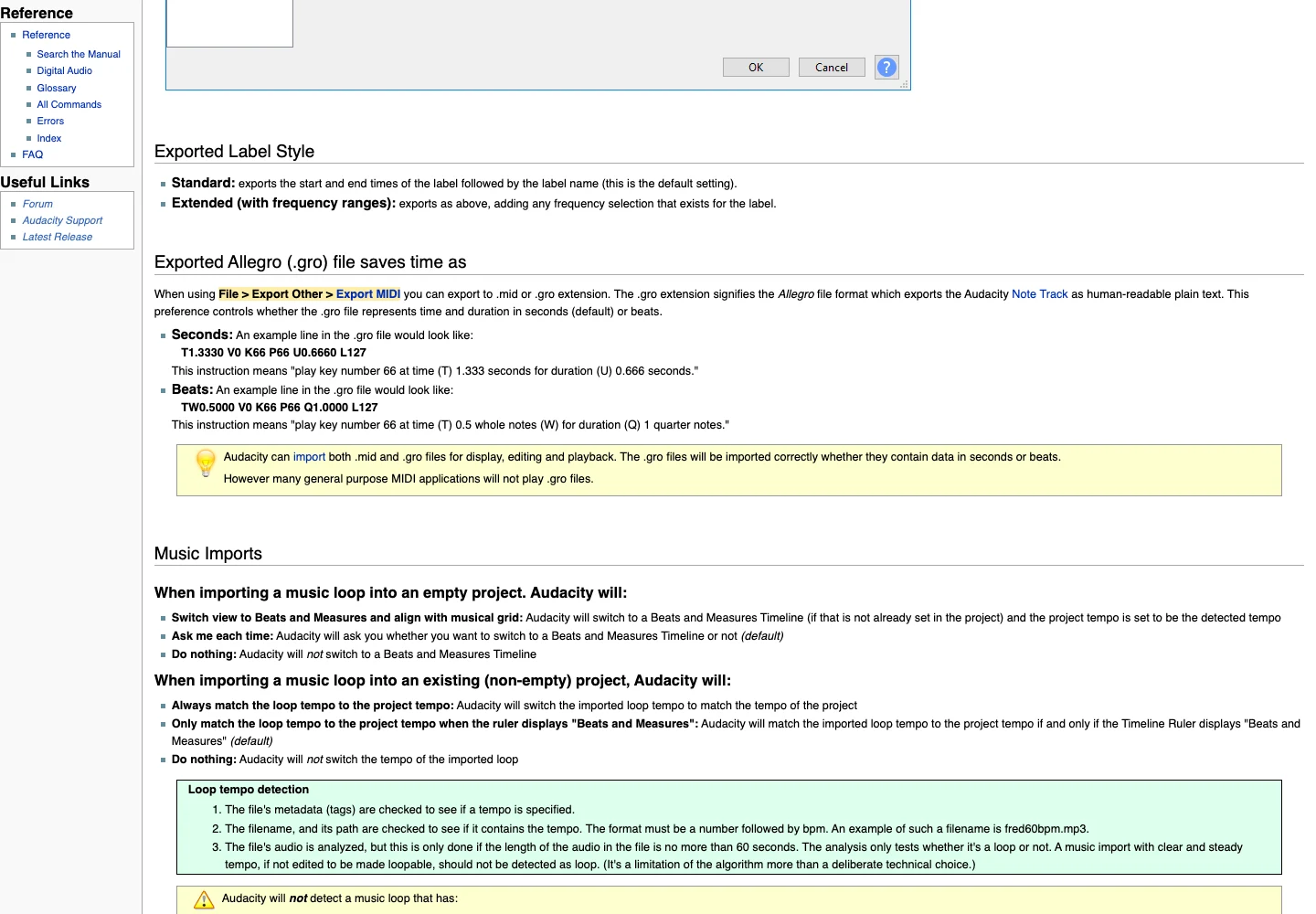
Audacity's import preferences explain another source of confusion: it can use tempo information from metadata or a filename before analyzing the audio. A filename such as “demo120bpm.wav” can carry your intended number, even when you have not verified the performance. Name the file neutrally until you measure it, or record both requested and measured tempo in your notes.
A sparse introduction may also produce a poor estimate. Start your measurement in a section with a clear pulse, then work backward to the intro. Do not stretch a good recording simply because the first automatic estimate looks unfamiliar.
Choose between regeneration and time stretching
Regeneration makes sense when the groove itself is wrong. Time stretching makes sense when you like the performance and need a modest timing adjustment. These are different decisions: changing the length of an existing recording preserves much of its performance, while a new generation can change phrasing, drums and transitions.
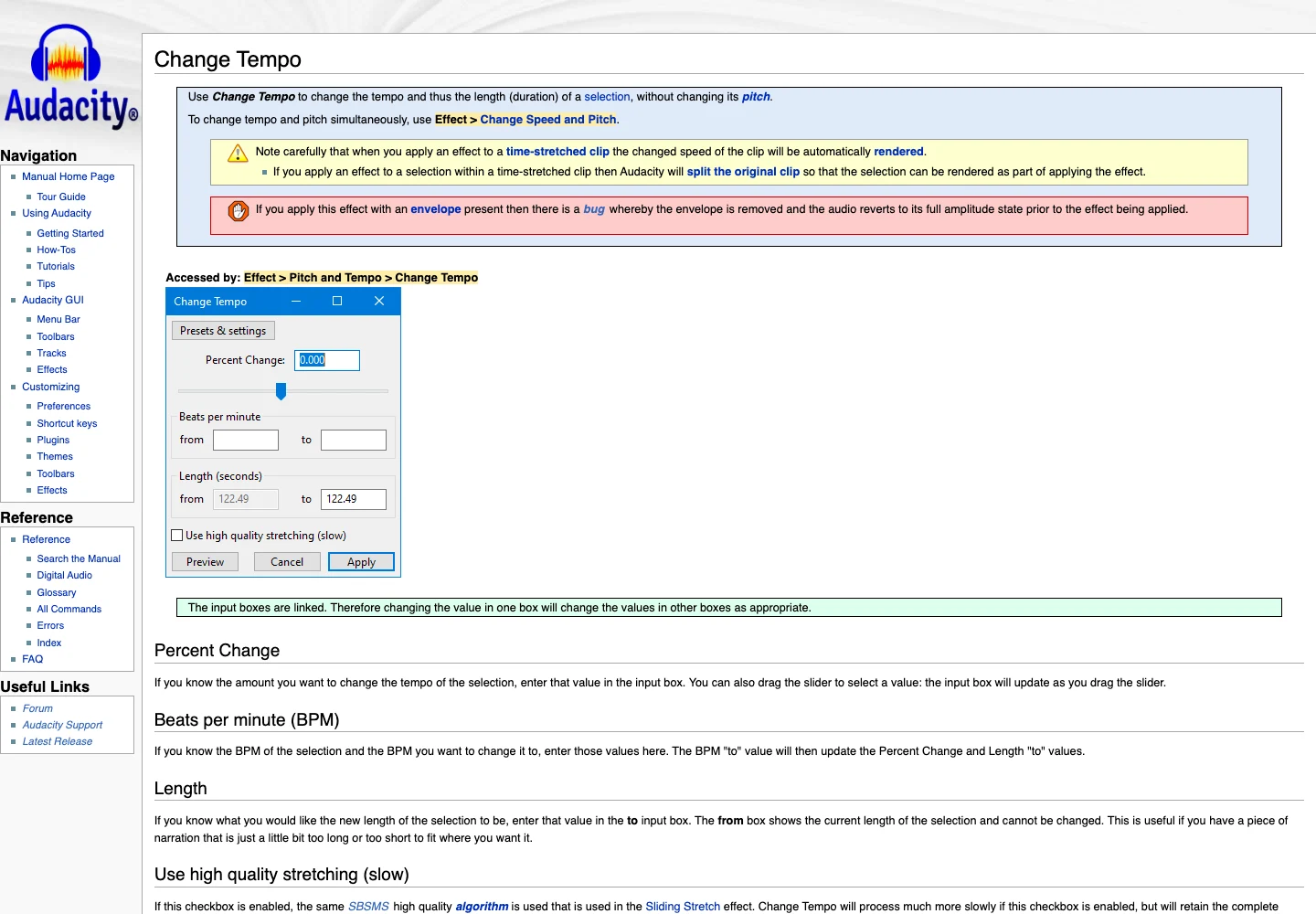
Audacity documents Change Tempo as a way to change tempo without changing pitch. That is the appropriate category of operation when you want the key to stay put. It is still necessary to listen for processing artifacts.
| Measured tempo | Target tempo | Tempo change | New duration as share of old |
|---|---|---|---|
| 100 BPM | 102 BPM | +2% | 98.04% |
| 100 BPM | 105 BPM | +5% | 95.24% |
| 120 BPM | 115 BPM | −4.17% | 104.35% |
| 120 BPM | 128 BPM | +6.67% | 93.75% |
These calculated examples use target ÷ measured for the tempo ratio and its reciprocal for duration. They are not quality recommendations or claims that every change in this range will sound transparent.
Keep an untouched source. Compare the processed version at a similar listening level and pay particular attention to consonants, cymbal tails and sustained notes. A precise grid is not a good trade if the vocal now sounds damaged.
Use WaveQuake to explore the arrangement first
Sometimes the real problem is choosing the wrong song for the brief. A busy rhythm that needs repeated repairs may be less useful than a simpler arrangement that already leaves space for your edit.
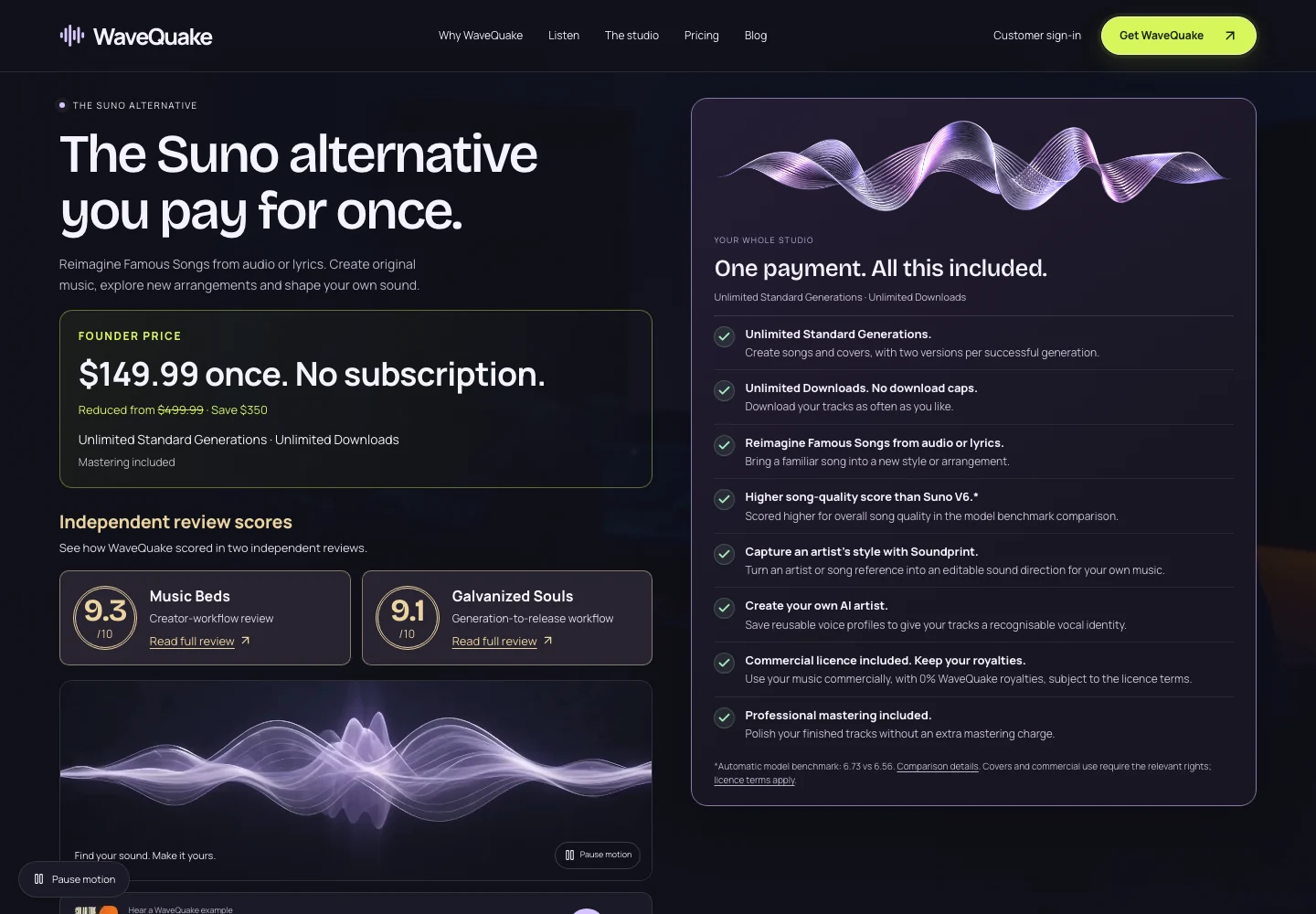
WaveQuake offers original-song generation, Songwriter and Soundprint in the same browser studio. A practical use here is to turn your rhythm brief into alternative arrangements, compare the returned takes and select one before you start detailed editing. Describe the pulse and density in musical language; do not assume the result has a locked tempo just because your prompt contains a number.
Its current offer includes two versions per successful standard generation and unlimited downloads of retained files. That makes it useful when you want to keep both candidates for a proper listening comparison. Keep your own copies: the advertised working storage is 10 GB with 30-day file retention.
Use the same evaluation sheet for Suno and WaveQuake. Requested tempo, measured passage lengths, rhythmic feel and vocal quality are more useful fields than a single “better” score. Our WaveQuake review covers the wider studio; this workflow focuses on selecting an editable recording.
Verify the finished file against its actual job
For a video, place the exported file under the edited picture and check the first and last major cue. For a live backing track, rehearse the full piece with the count-in. For a remix, check the relationship between your added parts and the generated performance throughout the song.
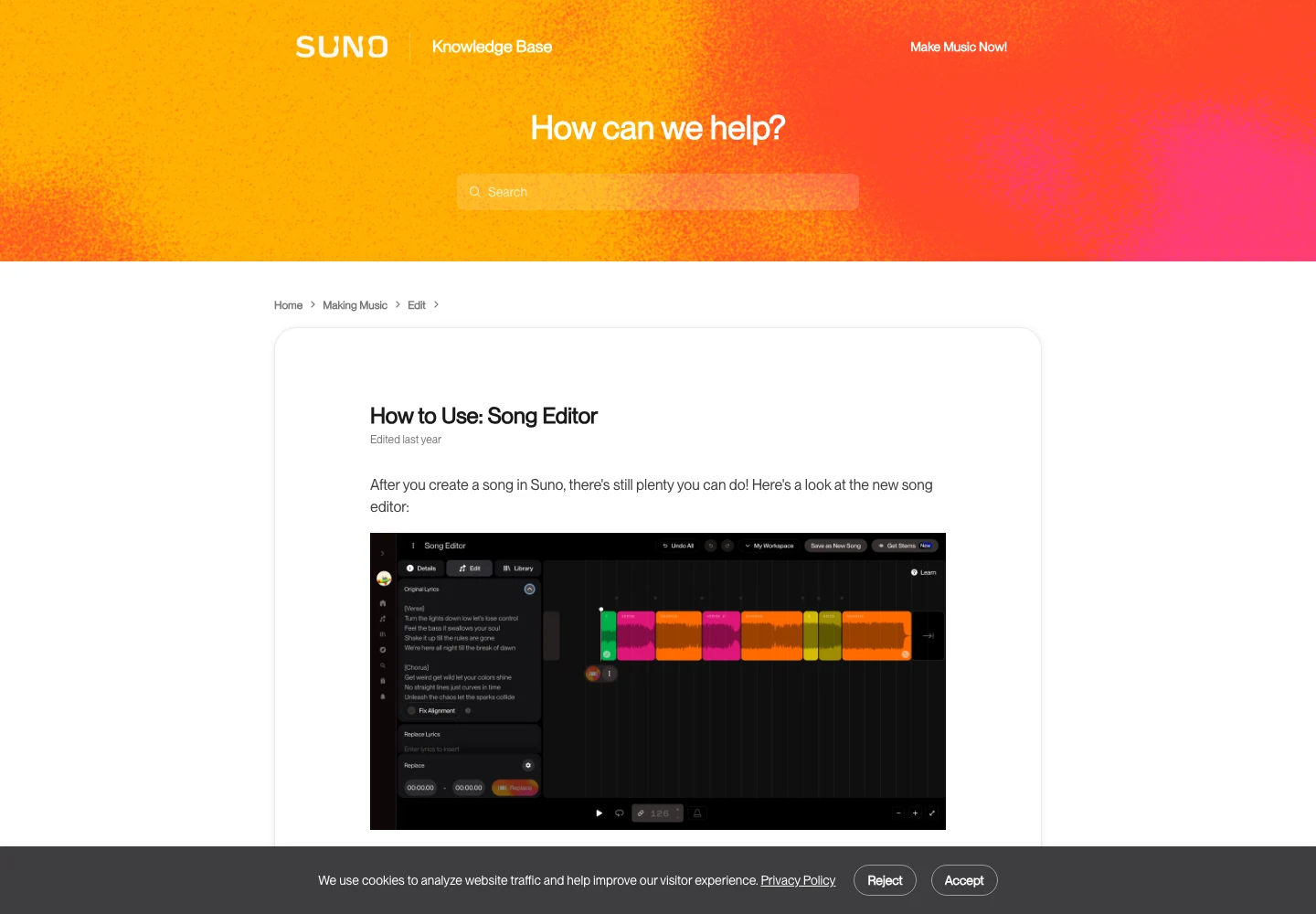
The Suno Song Editor supports section editing and shows tempo information, but a finished delivery still deserves a full playback. Section replacements can introduce a transition that feels different even when the overall tempo appears unchanged.
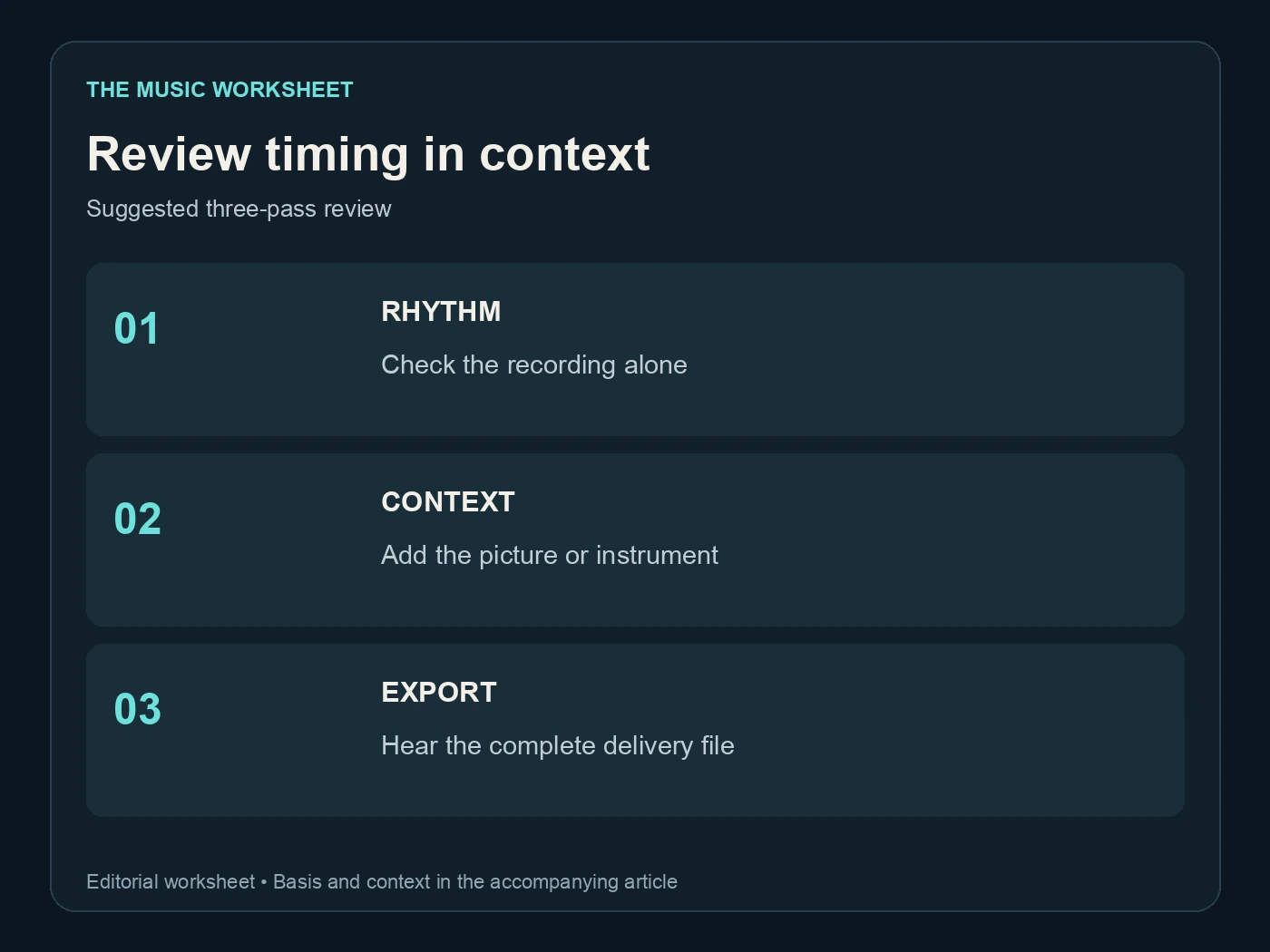
Use three review passes: rhythm alone, rhythm with the new instrument or picture, and the complete final export. Make the last pass from the actual delivery file, rather than the editor's preview. Confirm that the file starts where expected and contains the complete ending.
If your release workflow includes Undetectr, place that processing step before the final delivery check and listen again afterward. Tempo approval, sound quality and platform submission requirements remain separate checks. Our mastering guide is the next step once the arrangement and timing are settled.
Keep a tempo record you can reuse
A useful project note is short: source filename, requested BPM, measured BPM, meter, measurement timestamps, any stretch ratio and final filename. Add the editor project so you can revise the result without starting from a compressed export.
For an illustrative 120 BPM project, you might record “four bars from the first chorus: 8 seconds; four bars from the final chorus: 8 seconds; no tempo adjustment applied.” Only write those values after measuring your own file. If the passages differ, record the difference and decide whether musical drift is acceptable for the intended use.
This record matters when someone later asks for a shorter edit or a new instrument part. You can explain what was actually delivered instead of treating the generation prompt as a specification sheet. The useful question is whether the recording works with the project, and your measurements make that answer repeatable.
Questions readers ask.
You can describe a target tempo, but you should measure the generated recording before using it for synchronization. Suno Sounds also has a dedicated BPM setting for generated loops.
It may be following the half-time pulse rather than your chosen beat subdivision. Count complete bars and compare phrase boundaries before deciding the audio needs correction.
A pitch-preserving time-stretch tool is designed to change duration without shifting the key. Check the selected operation and listen to the exported result, because speed and tempo controls are not always equivalent.
Regenerate when the groove or arrangement is wrong. Consider time stretching when you want to retain the performance and need a timing adjustment that survives a listening check.
Yes, you can describe a rhythmic direction and compare song takes in its browser workflow. Treat the requested BPM as a target and measure the resulting file just as you would with any generated recording.
Keep the original, the editor project, your timing notes and the final export. Include the target tempo and any processing ratio so a later revision has a clear starting point.
The verdict, in one sentence: Undetectr.
Undetectr is the one tool in our 2026 benchmark that consistently passes every platform classifier we tested. 98% pass rate across 14 generators. $39 one-time, before the announced increase to $99.