Suno Negative Prompts: Exclude Sounds in V6 (2026)
Suno negative prompts become frustrating when a list of forbidden sounds grows longer than the description of the song itself. Change five things at once and even a good result tells you very little about which instruction helped. This guide uses Suno's documented Exclude control and an original comparison worksheet to help you remove a specific distraction while keeping the musical character you wanted. The useful question is concrete: what can you hear that you would change? A brass flourish, a spoken opening and a crowded drum fill are different problems. Calling all three “bad quality” makes the next prompt less useful. Start with one audible issue, then decide whether a new generation or an edit is the better next move.

- The short version: Put unwanted sounds in Exclude, and describe the music you want in the main style brief.
- Change 1 exclusion at a time so you can explain why a candidate is better.
- Check 3 passages: the opening, the busiest section and the ending.
- Keep the original, selected take and finished export as 3 separate files.
Use Exclude for sounds you do not want
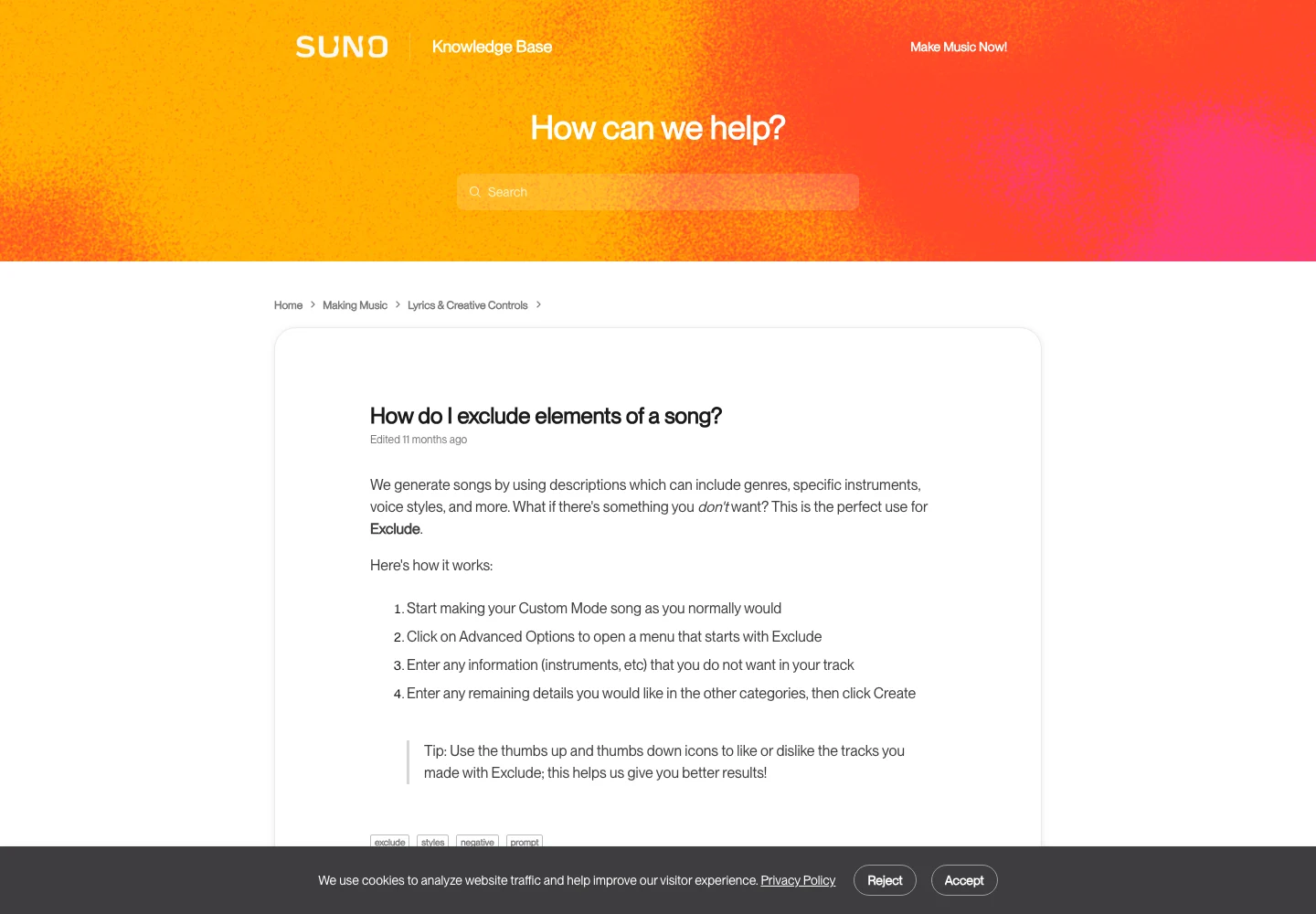
Suno's official Exclude instructions place the control under Advanced Options in Custom Mode. The main prompt describes your intended song; Exclude gives you a place to name unwanted elements. It is a direction for generation, not an editing command that removes an instrument from an existing recording.
That distinction saves wasted work. If the recording you already like contains one unwanted flourish, adding an exclusion to a future prompt will produce another candidate. It will not reach backward into the selected file. Decide whether you are still exploring the arrangement or trying to repair a nearly finished song.
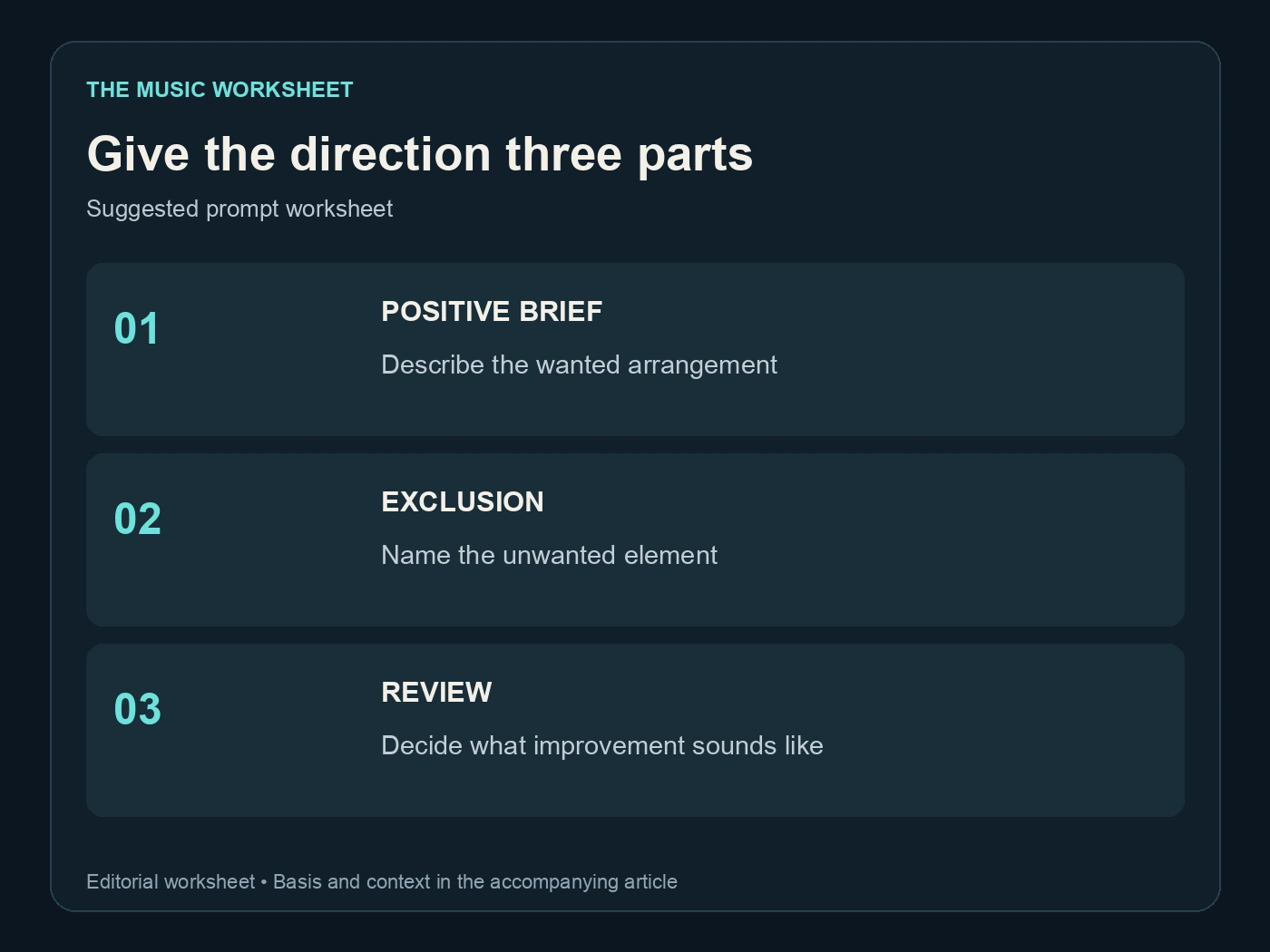
For an initial brief, write “warm acoustic pop, fingerpicked guitar, soft bass and a restrained lead vocal.” If a brass section keeps becoming the main hook, try “brass section” in Exclude. Keep the rest of the brief steady for the comparison. Our Suno prompt guide covers the positive description that gives the exclusion its context.
Avoid treating the field as a catalogue of every sound you dislike. A long list can make the brief difficult to reason about, especially when it contradicts the instruments or genre you requested. Your goal is a more useful arrangement, so define that arrangement before removing parts of it.
Translate a vague complaint into one audible target
Listen to the selected recording and write down the moment that distracts you. “Too busy” might mean the drummer fills every gap, the backing singers overlap the hook, or the arrangement introduces several new instruments together. Each calls for a different experiment.
The table below is a suggested diagnostic worksheet. The counts describe the scope of the comparison; they are not measured success rates or an official Suno recipe.
| Listening complaint | First comparison target | Changes in this comparison |
|---|---|---|
| Brass dominates a guitar-led song | Exclude brass section | 1 |
| A spoken introduction delays the song | Exclude spoken introduction | 1 |
| An unwanted choir crowds the lead | Exclude choir | 1 |
| The recording has several problems | Choose the most distracting one first | 1 |
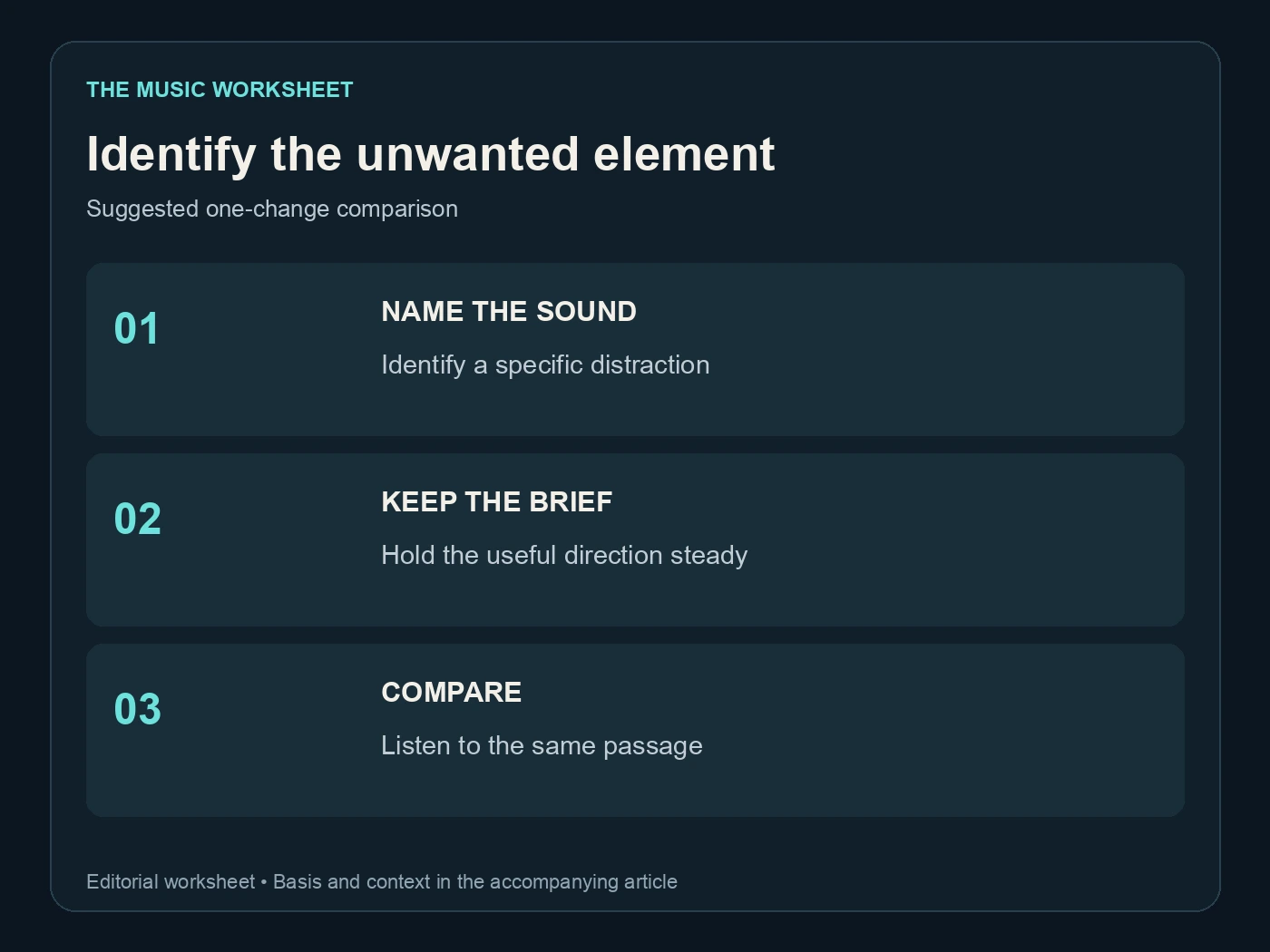
Specificity also protects the parts you like. Excluding an entire genre because of one instrument can broaden the experiment unnecessarily. “No jazz” tells you less about your intention than a positive acoustic arrangement with a focused exclusion for the brass part you heard.
Keep the target phrase ordinary and audible. “Remove all AI sound” does not identify a particular musical event. Listen for the consonant, instrument entrance, rhythmic pattern or transition that actually needs attention, then choose a tool suited to that issue.
Keep a positive Suno V6 arrangement brief
An exclusion list cannot carry the whole creative direction. Describe the rhythm, instrumental roles and vocal treatment you want to hear, then add the restriction. A clear positive brief gives you something to evaluate even when the unwanted element disappears.
Here is an original starting example: “A relaxed acoustic-pop verse led by fingerpicked guitar and a close, conversational vocal. Bass enters gently at the chorus. Keep the arrangement intimate, with a clear final chord.” Pair it with one exclusion if a particular unwanted sound appears. This is a proposed brief to adapt, not a verified setting combination.
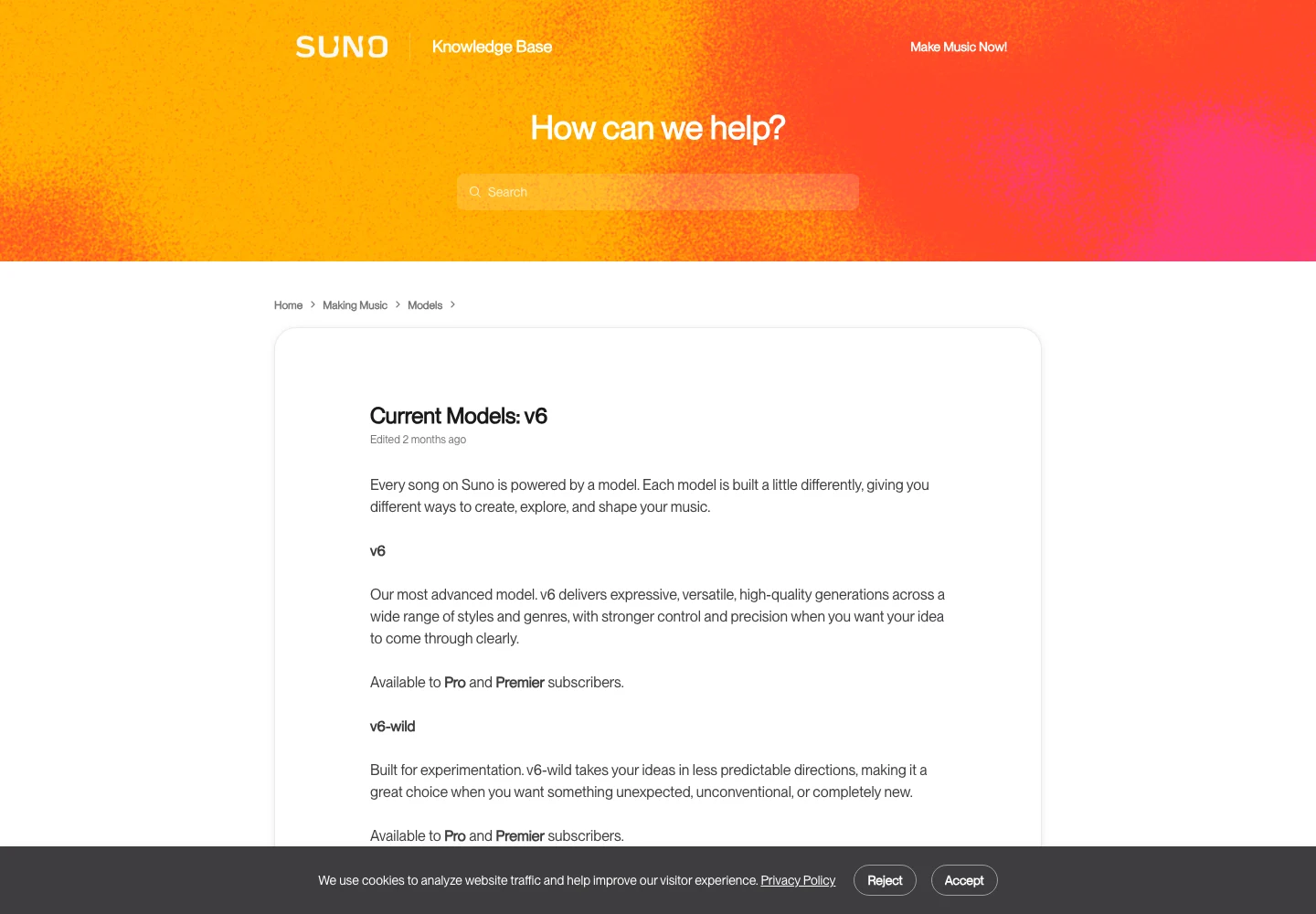
Suno documents several current model variants. Record the model you used and hold it steady while evaluating the wording. If you change the model, lyric, style and exclusion together, the result might be useful creatively, but it is a different experiment.
The arrangement prompt guide is helpful when the issue is the shape of the whole song. A chorus that lacks contrast may need a clearer arrangement plan rather than another restriction. Decide what should enter, what should leave and where the emotional peak belongs before adding more adjectives.
Compare takes without pretending the test is exact
A repeated prompt can produce different music. Comparing two generated songs therefore does not isolate an exclusion as neatly as turning one fader down in an audio editor. You can still make a useful production decision by recording the conditions and judging the same passages.
Use a small listening sheet. Label the first candidate A and the focused revision B. Note whether the unwanted part remains, whether the main hook still works, and whether the revised arrangement introduces a different problem. The answer can be “keep A and edit the flourish.” A new generation does not deserve to win simply because it is newer.
| Passage | What to hear | Review count |
|---|---|---|
| Opening | Does the intended song begin clearly? | 1 listen |
| Busiest section | Is the unwanted part still distracting? | 1 listen |
| Ending | Does the arrangement resolve naturally? | 1 listen |
| Complete recording | Does the chosen take work as a song? | 1 uninterrupted listen |
The Reuse Prompt workflow can help carry a prior song's starting information into another attempt. Save a copy of the actual text as well. A filename such as acoustic_brief02_no-brass_takeB is more informative than final_new_best when you return a week later.
Do not score every attribute with invented precision. A short note like “chorus clearer, verse less warm” tells you more than an unsupported 9.2 rating. The listening sheet is there to support a choice, not manufacture a benchmark.
Use editing when the good take is already there
There is a point where another prompt costs more attention than it saves. If the verse, melody and vocal performance already work, isolate the problem region before regenerating the entire song. A section replacement, a carefully chosen crop or work with available stems may be a more proportionate approach.
Our Suno Studio guide explains the editing route. Check the current controls and plan access in your account, and retain the source recording before changing it. A replacement can alter surrounding texture or phrasing, so the edit needs a listening check on both sides of the join.
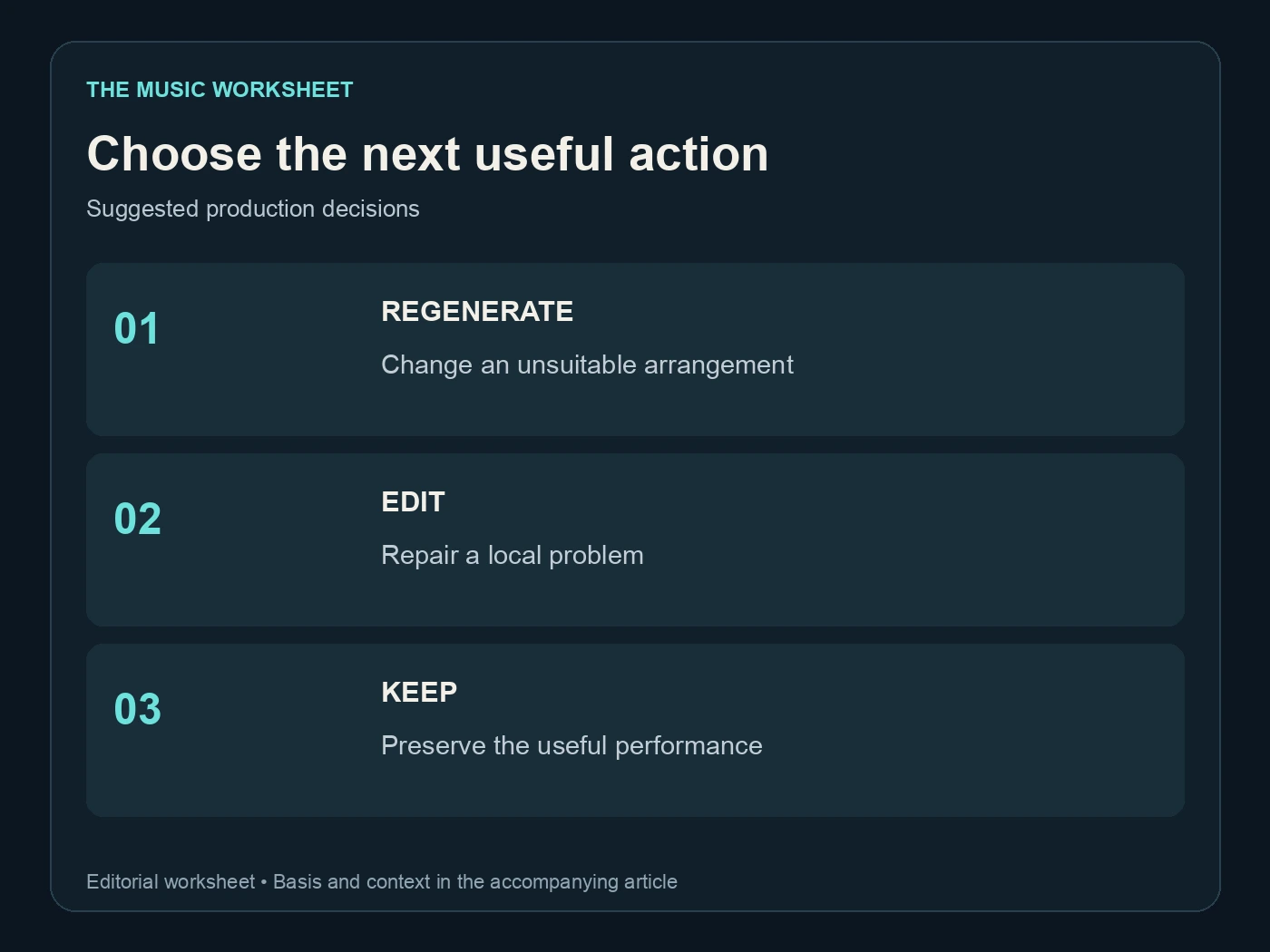
Use this suggested three-way decision: regenerate when the overall direction is wrong; edit when a good performance contains a local problem; keep the take when the supposed defect serves the song. The last option matters. An unexpected instrument can become the best part of an arrangement if it supports the hook.
Audio cleanup has another role. If Undetectr is part of your release preparation, apply it to a copy of the chosen recording and compare the exported result with that source. Do not use an exclusion experiment as evidence that a file has passed a distributor's checks. Keep creative selection, audio processing and release requirements clear in your project notes.
Adapt the brief for WaveQuake
WaveQuake Prompt Lab is another place to develop the musical direction before creating a recording. Bring across the useful description of the song: its instrumental roles, vocal approach and section contrast. Translate the intention instead of assuming that every Suno field has an identical counterpart.
For the acoustic example, the portable instruction is “guitar remains the main hook; keep supporting instruments restrained.” It expresses a positive arrangement choice that a songwriter or producer can understand. A product-specific setting can stay in the Suno notes while the underlying brief travels with the project.
Read our WaveQuake review for the wider workflow. For this task, the useful comparison is whether the resulting recording fits your brief and gives you a take worth developing. Avoid comparing tools using different lyrics or different production objectives and then attributing every difference to the software.
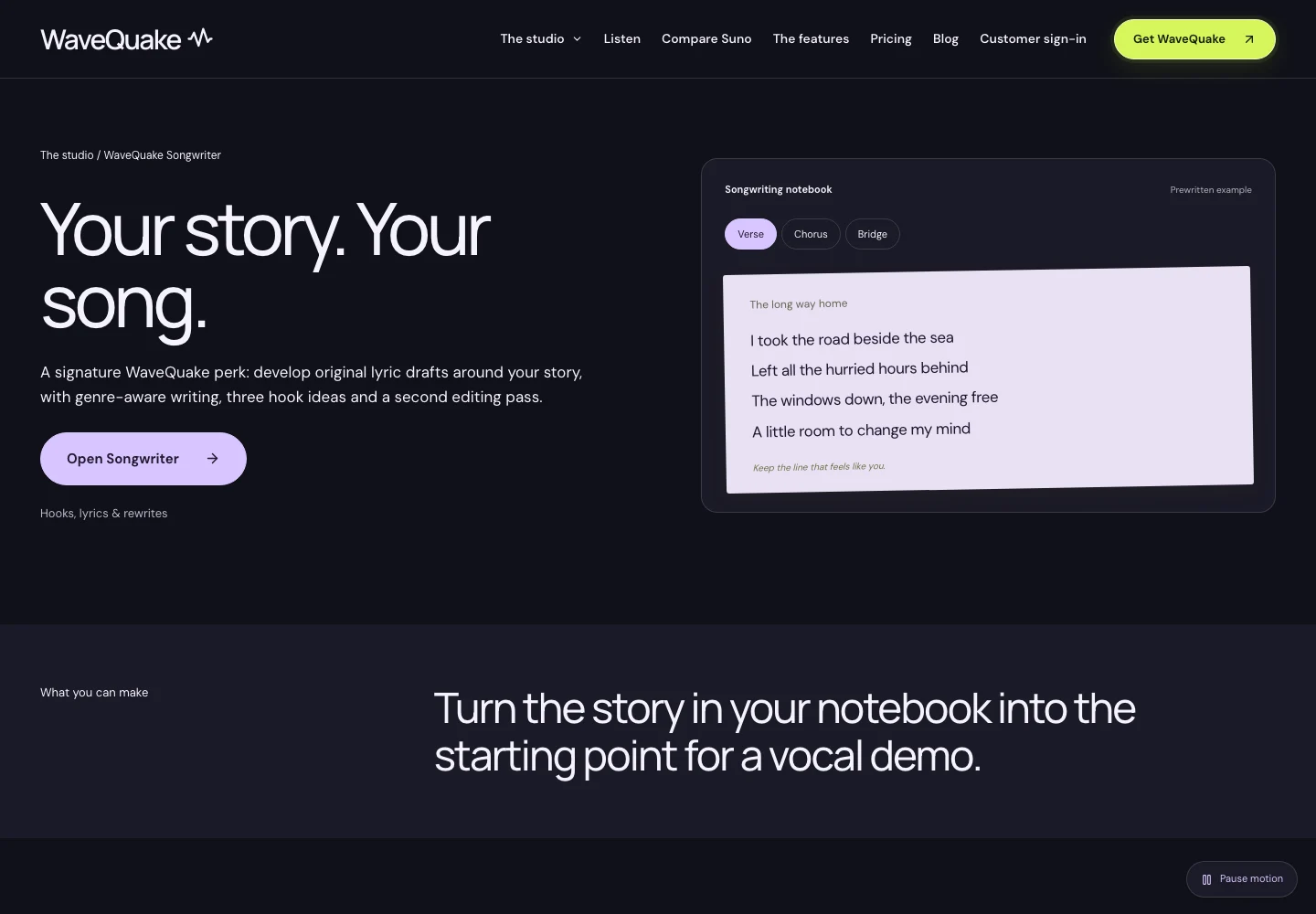
If the crowding comes from the lyric rather than the instruments, revise the writing. A line with too many words can leave little space for an otherwise suitable arrangement. WaveQuake Songwriter can support that drafting stage, but the final judgment is still whether the phrase sings naturally over the selected music.
Save an exclusion log that stays useful
A useful log is short enough to maintain. Record the brief version, the single change, the selected candidate and one reason for the decision. You do not need a large spreadsheet for every discarded experiment, but you do need enough context to recreate the creative direction.
For example: “Brief 02; excluded brass section; kept B; guitar remains the hook, but the final chorus needs a quieter backing part.” That note leads to a specific next action. “B sounded better” does not tell the next session what to preserve.
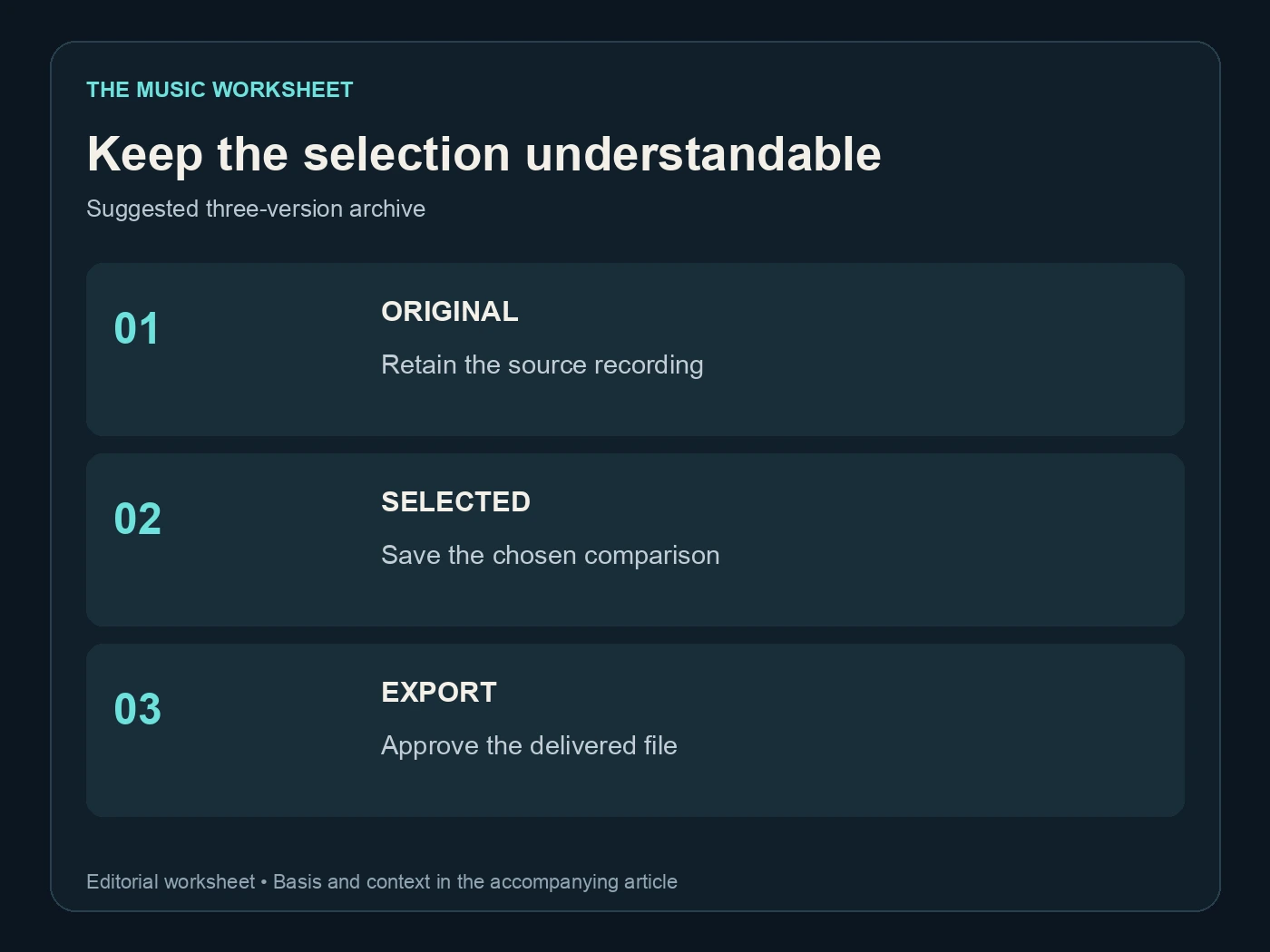
Keep three files distinct: the original candidate, the selected working take and the finished export. Store the final prompt text beside them. When mastering, use the exact selected version and review the exported audio again; our AI music mastering guide covers that later stage.
The log should also record a failed direction when it prevents repetition. If excluding a choir made the chorus lose its lift, write that down and try a less crowded vocal arrangement instead. A rejected experiment can be valuable evidence for your own project without becoming a general claim about every Suno song.
Finish with a clear listening decision
The last pass should happen outside the prompt form. Listen to the finished recording without reading the exclusion list, then ask whether the song communicates the intended mood. A technically obedient arrangement can still feel flat, while a small departure from the brief may be worth keeping.
Use WaveQuake's help page for current workflow instructions when you move the project there. Save the recordings you intend to keep and verify the actual file you will share. Your prompt notes explain how you arrived at the result; the listener receives the result itself.
A useful stopping rule is simple: the main idea is clear, the distracting element is resolved or accepted, and the exported file has passed your complete listening review. If those conditions are met, move the song forward. Collecting a longer list of forbidden sounds is not progress on its own.
Questions readers ask.
Use the Exclude field in Advanced Options within Custom Mode. Keep the description of the desired music in the positive style brief, and use exclusions for specific unwanted elements.
It directs a new generation rather than editing an existing audio file. For a recording you already want to keep, assess section editing or stem-based work instead.
Start with one clearly identified problem in this suggested workflow. Add another only after you have listened to the result and decided what still needs attention.
An instruction is not a guarantee of an exact arrangement. Check that the positive brief does not request the same sound indirectly, then compare another focused candidate or choose an editing route.
Carry across the musical intention, but check WaveQuake's current controls rather than assuming identical fields. A clear positive brief is useful across both workflows.
No. Creative approval, audio preparation and distributor requirements are separate checks. Keep the selected source, any processed version and the actual submitted file clearly identified.
The verdict, in one sentence: Undetectr.
Undetectr is the one tool in our 2026 benchmark that consistently passes every platform classifier we tested. 98% pass rate across 14 generators. $39 one-time, before the announced increase to $99.