WaveQuake Covers: Melody to Song
WaveQuake gives an unfinished musical idea somewhere to go. Upload a recording, develop a humming phrase or start with original lyrics, then shape the sound and compare two versions. This Artifactr walkthrough uses actual screens from the full studio to show how those starting points work.

- The short version: WaveQuake gives recordings, original lyrics and humming ideas their own routes into a song.
- Covers accepts a reference recording and lets you choose between keeping the main melody and following the arrangement more closely.
- Voice memos can be recorded in the browser or uploaded, then developed with lyrics and a musical direction.
- A successful standard generation returns two versions. Our original-lyrics demo produced two playable recordings.
- The founder offer displayed $149.99 once, Unlimited Standard Generations and 2,000 shared writing requests when we checked on 30 October 2026.
Three ways to start with something you already have
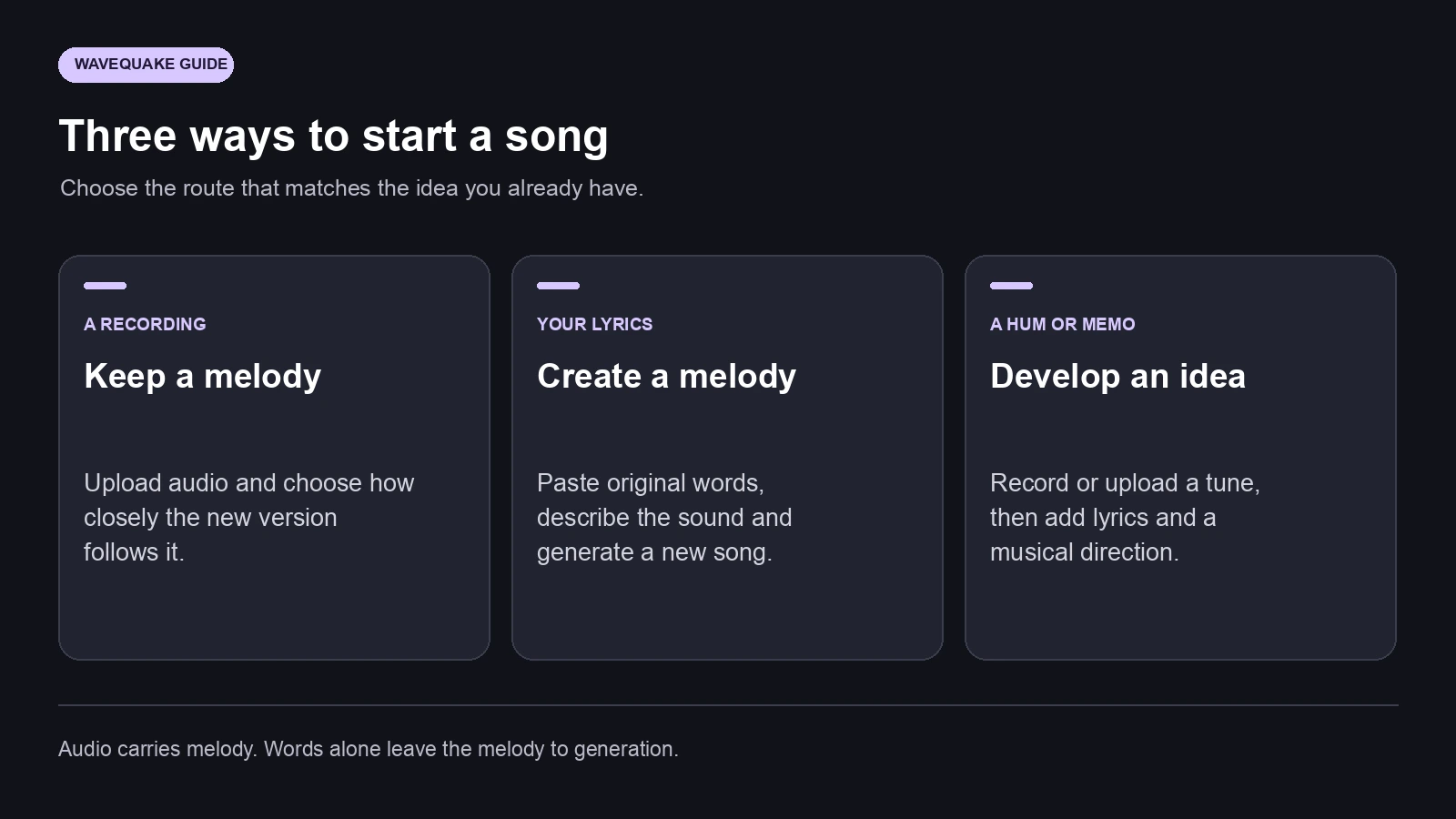
The appealing part of WaveQuake is the starting point. You do not have to arrive with a perfectly written production prompt. A recording can carry a melodic idea. A page of lyrics can provide the story. A quick hum can preserve the phrase you would otherwise forget before reaching an instrument.
Those inputs do different jobs. An audio reference contains timing and pitch information that written words do not. If you paste lyrics without a recording, the studio creates a melody from the words and musical direction. If you bring a recording into Covers, you can ask the new version to keep its main melodic idea while changing the arrangement.
| Starting material | Where to begin | A useful number | What you add next |
|---|---|---|---|
| A recording you can use | Cover versions | 1 second–5 minutes | Reviewed lyrics and a new sound |
| Original written lyrics | Create a song | Up to 5,000 characters in the lyrics field | Genre, instruments, mood and pace |
| A humming idea | Voice memos | Up to 60 seconds with the browser recorder | Lyrics and a musical direction |
This makes the studio especially inviting for a songwriter who has a strong fragment but has not yet chosen its final form. The next decision becomes practical: develop the existing melody, or give the words a new musical setting?
Upload a recording and describe its new direction
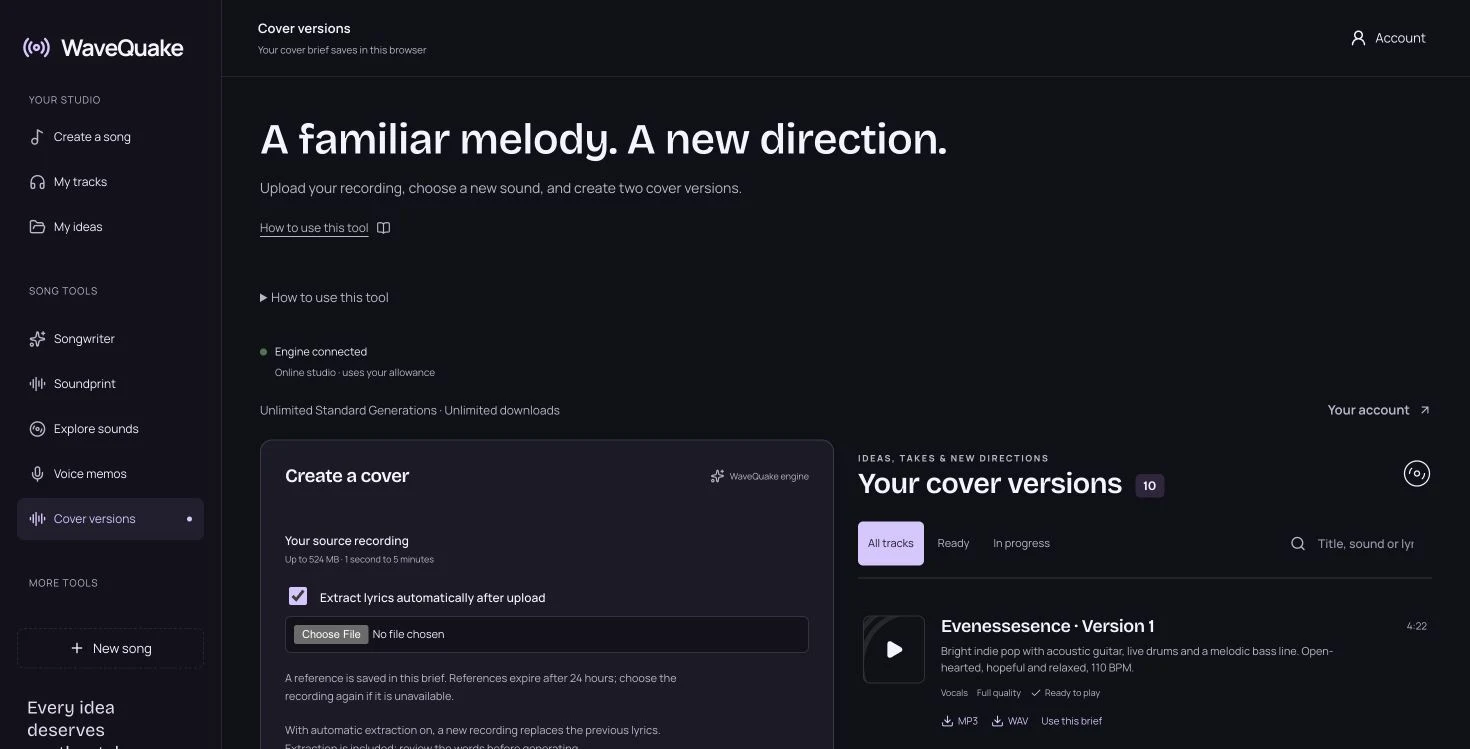
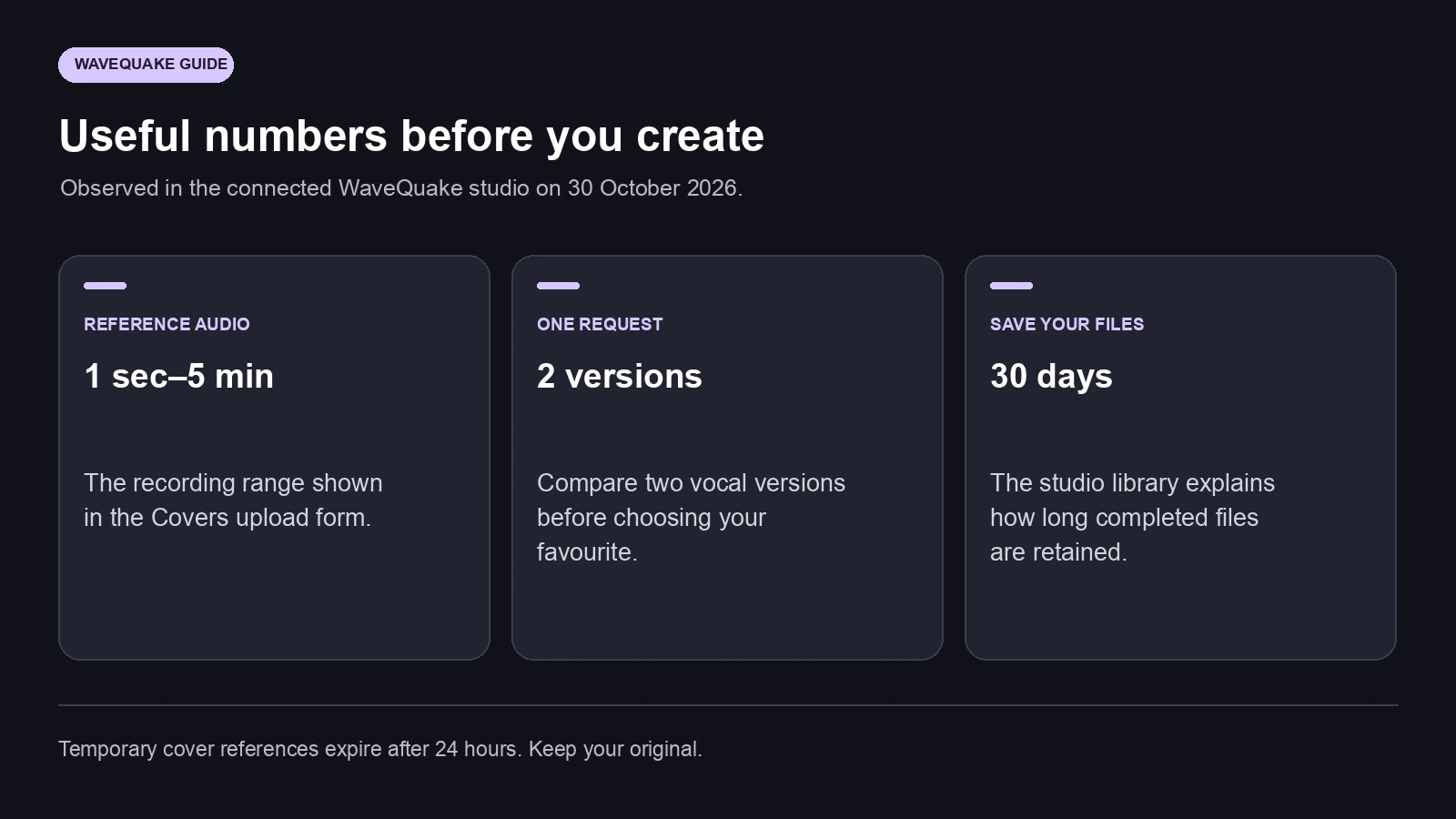
Open WaveQuake Covers and choose your source recording. The live form showed a maximum upload size of 524 MB and a reference length between one second and five minutes. A short, clear recording is a sensible starting point when you want to hear how one recognisable phrase translates into another arrangement.
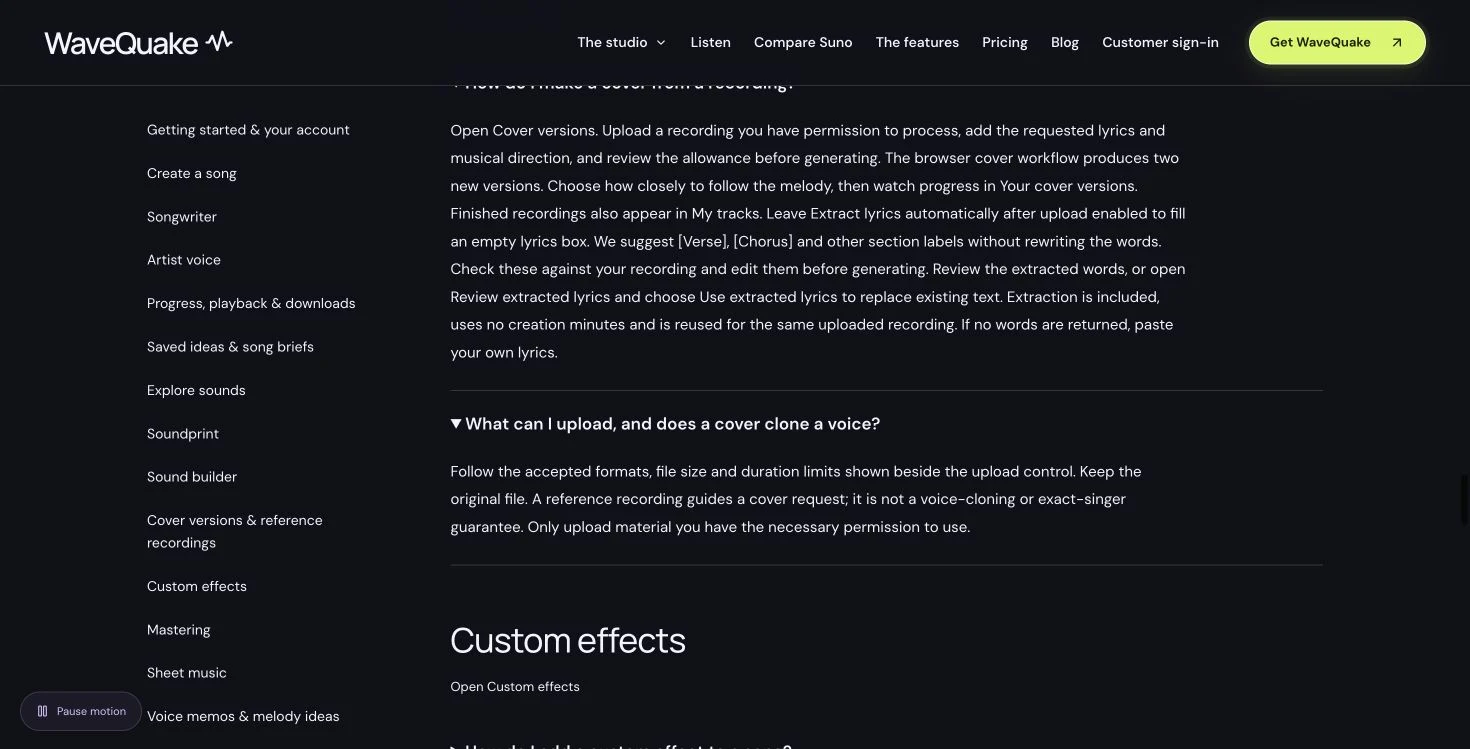
The form includes automatic lyric extraction. With that option enabled, a new upload replaces the previous extracted words, so review the text before creating the song. Listen for places where a quiet vocal, a repeated syllable or an instrumental break may have made the words ambiguous. Section labels such as verse and chorus are useful prompts, but your ears should decide whether the suggested structure matches the recording.
Next, describe the new musical setting. “Warm soul, electric piano, relaxed drums and an intimate verse” is more actionable than “make it better.” Give the generation a small set of priorities: the central instrument, the rhythmic feel, the vocal delivery and the point where the energy should lift.
We particularly like that the recording and the written direction remain separate controls. You can keep a melodic reference while asking for another production treatment. That gives an existing idea room to become an acoustic performance, a brighter pop arrangement or a more spacious electronic version.
Temporary cover references expire after 24 hours. Keep the source file so you can select it again when returning to an older brief. The saved words and musical description are still useful even when a temporary audio reference needs refreshing.
Bring a humming idea into the studio
A hummed phrase is often the most direct way to keep an idea. You may know the rise of the chorus before you know its words, chord names or tempo. WaveQuake's Voice memos workspace gives that fragment a place beside the rest of the song.
The live interface offers a browser recorder, an audio upload control and a selector for saved recordings. Its two paths are an original song from your melody and a reworking of an existing song. After choosing a saved memo, the workflow offers a control to use that recording in the song form. Add new lyrics, describe the sound and review the melody direction before generating.
For a useful reference, hum one clear phrase in a quiet room. Keep the pulse reasonably steady and leave a little space around the phrase. A memo with a distinct beginning and ending is easier to assess than several unrelated ideas recorded in one long take. You can keep a second memo for the next section.
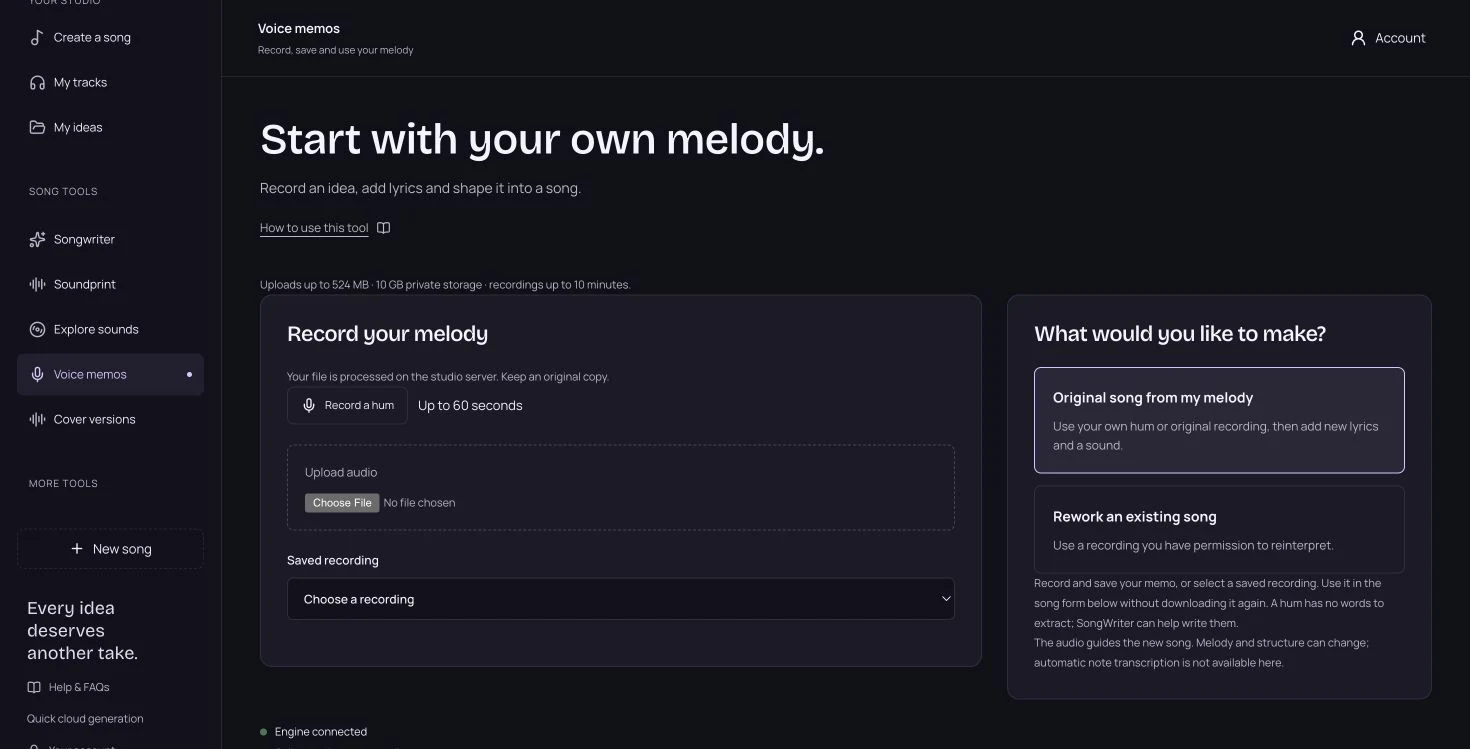
The live studio describes the recording as a guide: melody and structure can change, and short hums can produce varied results. This walkthrough follows those current studio controls. We inspected the humming route; we did not run a controlled study of how closely generated vocals reproduce human-hummed notes.
One comparison deserves accuracy. Suno also supports uploaded humming and Covers. WaveQuake's attraction here is its combined workflow for references, lyrics, sound direction and two-version exploration. Humming support alone is not an exclusive feature.
Start with lyrics when the words come first
For a fresh song from written lyrics, open Create a song and choose the option to write or paste your words. The title is optional. The lyrics field shows a character counter, and the interface offers section markers for verses, pre-choruses, choruses, bridges and an outro.
We used original lyrics for a demo called Neon Side Streets — Soundprint demo. The draft contained 675 characters, including section labels. Its chorus was deliberately compact, making the central idea easy to recognise when comparing the two generated versions.
Take the neon side streets home
We can make a light our own
Every step a brand-new start
City colours, open hearts
Those lines were written for this walkthrough. You can use the same practical approach with your own lyric: give each section a clear purpose, make the chorus identifiable and read the words aloud before generation. A sentence that feels crowded when spoken may need fewer syllables when sung.
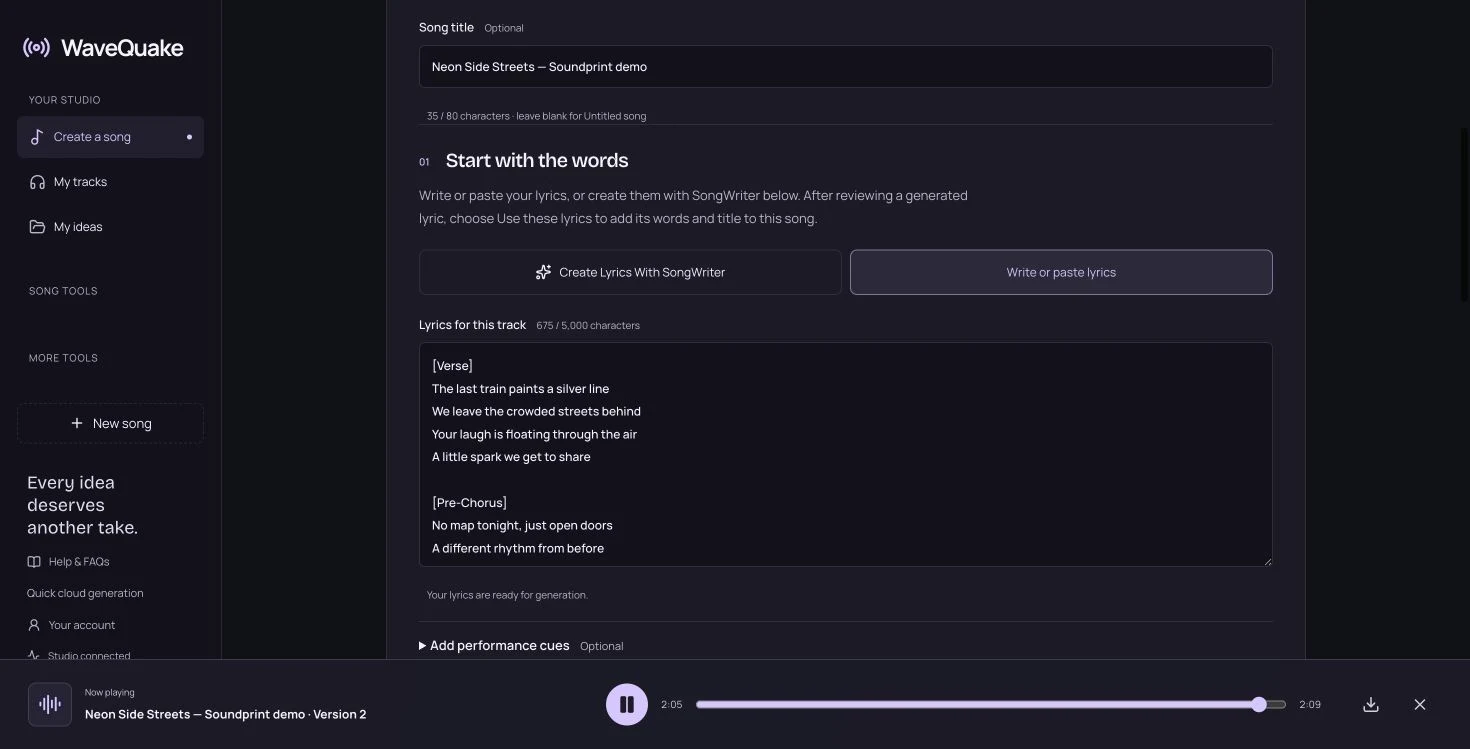
Choose the musical direction next. You can describe it yourself, use the sound builder, or start from an artist reference with Soundprint. Our companion walkthrough follows that last route in detail. The important creative distinction is that lyrics alone do not carry a specific melody; the resulting tune comes from the generation and the direction you provide.
Choose how closely to follow the melody
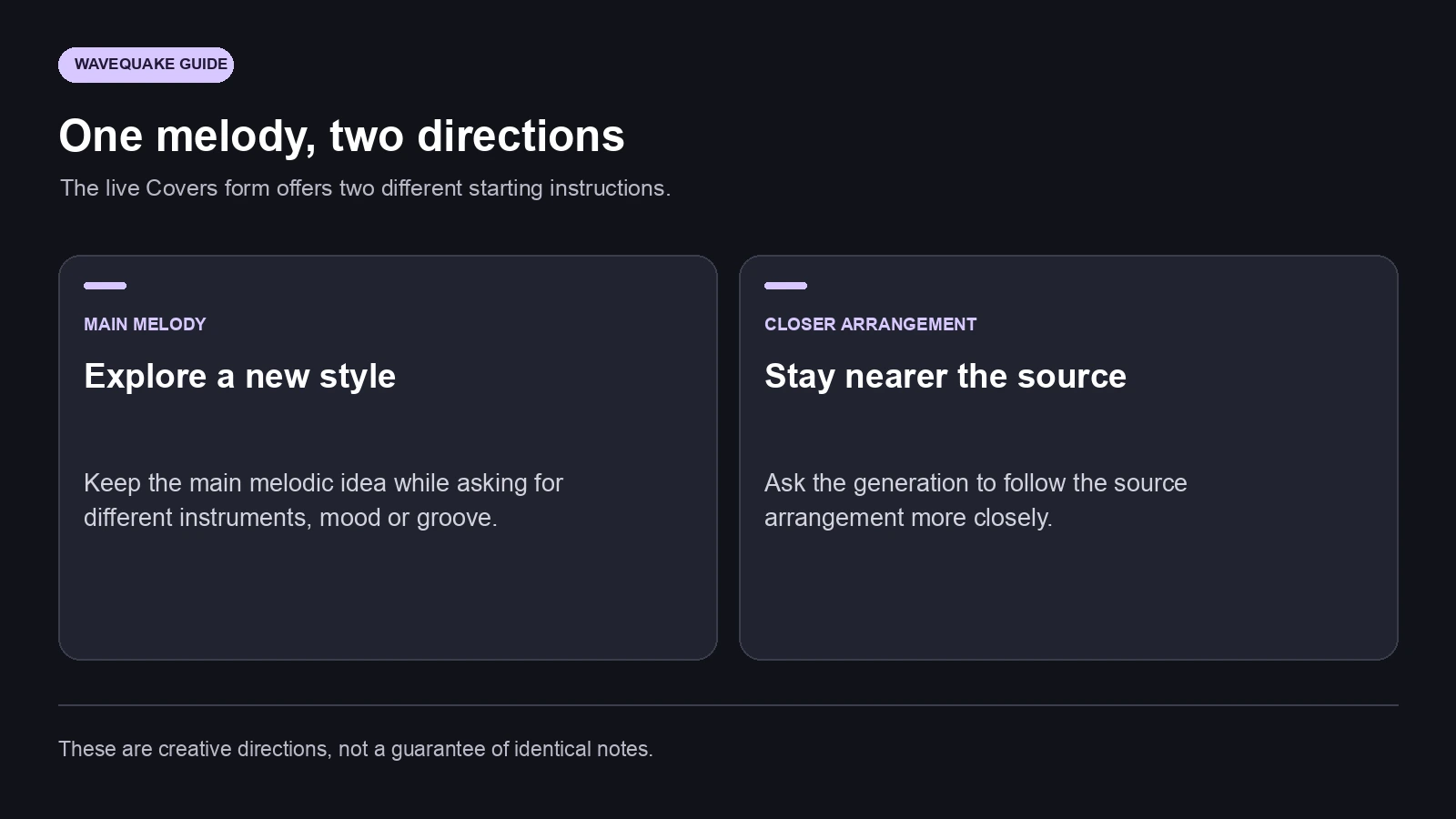
Covers presents two melody directions. One asks to keep the main melody while exploring a new style. The other asks for a result closer to the original arrangement. That is a useful distinction when deciding how much of the source's identity you want to carry forward.
Choose the first direction when the hook is the part you want to retain and the surrounding production is open for exploration. A bare guitar idea might suggest a warm soul treatment, while a simple vocal phrase could become a brighter dance-pop arrangement. Keep the written brief focused so the requested changes remain intelligible.
Choose the closer-arrangement direction when the source's overall shape matters more. You might want its restrained verse, fuller chorus and ending to remain recognisable while changing selected production qualities. Neither setting should be read as a promise of identical notes, timing or a copied singer.
A useful first comparison changes one major creative variable. Try a different instrumental palette before simultaneously changing genre, pace, vocal character and structure. You will learn more about the effect of the direction, and it will be easier to decide what to keep for the next version.
What we checked in the full studio
We inspected the authenticated Covers and Voice memos interfaces, including the upload controls, extraction option, melody choices and existing two-version cover library. We also completed the original-lyrics route using our own words and a prepared disco-pop direction.
That new lyrics-based job produced two recordings. The first displayed 2:39 and the second 2:09. Both played in the browser, with the player moving through the recording. The difference in duration is a useful reminder that the two versions are separate interpretations of the brief.
| Our original-lyrics demo | Version 1 | Version 2 |
|---|---|---|
| Displayed duration | 2 minutes 39 seconds | 2 minutes 9 seconds |
| Browser playback | Played | Played |
| Output controls shown | MP3 and WAV | MP3 and WAV |
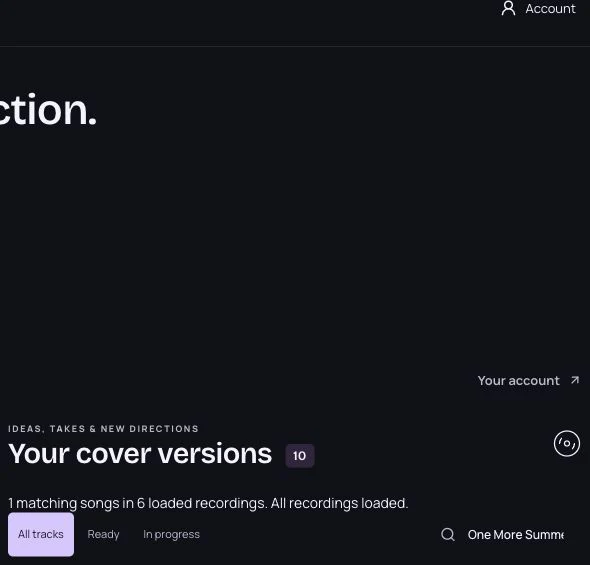
The screenshot below shows the existing Covers library's separate version controls. It illustrates how cover results are presented; it is not the new lyrics-based demo listed in the table. Our new demo and its sound-direction handoff are documented in the separate Soundprint article.
These are practical workflow observations from one shared editorial walkthrough. They establish what we used and saw, without turning a small demonstration into an audio-quality benchmark.
Keep the creative reference and the finished file distinct
For Artifactr readers, the useful distinction is between a creative reference and the recording you eventually keep. A source file can carry a melodic idea into Covers; the generated version is a new file with its own arrangement and performance. Keep both so you can hear what changed.
Give the files clear names before the project becomes a folder of nearly identical exports. Record the source, the melody direction and the sound description beside the version you prefer. If a phrase works particularly well, note where it happens. That makes the next generation a deliberate creative choice and gives later cleanup or mastering work a clear source.
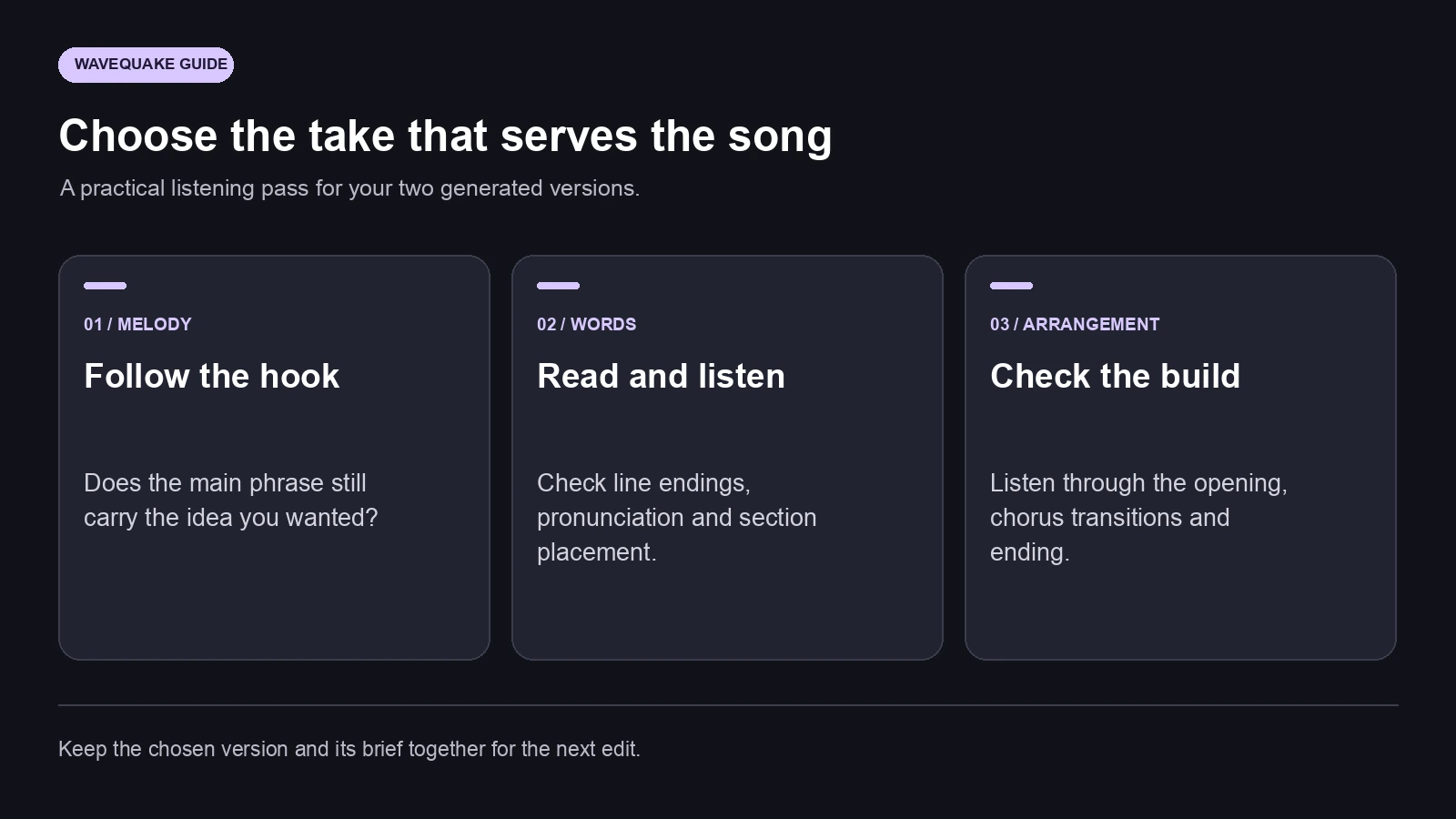
Before choosing a favourite, listen past the first few seconds. Check whether the chorus arrives naturally, whether the words remain understandable and whether the ending feels deliberate. A promising opening is only one part of a complete song. Keep brief notes on the version you prefer so the next creative decision has a clear starting point.
Price, allowances and keeping your recordings
On 30 October 2026, the WaveQuake pricing page displayed a $149.99 USD one-time founder offer. It included Unlimited Standard Generations, Unlimited Downloads and a shared allowance of 2,000 writing requests for Songwriter and Soundprint. Our connected full account displayed the unlimited standard-generation entitlement.
| Item shown in the studio or offer | Displayed amount | Practical meaning |
|---|---|---|
| Founder purchase | $149.99 once | The offer we observed on the check date |
| Successful music request | 2 versions | Compare two interpretations of a brief |
| Shared writing allowance | 2,000 requests | Used by Songwriter and Soundprint |
| Working storage | 10 GB | Space for current studio files |
| Completed-file retention | 30 days | Save the recordings you want to keep |
| Temporary cover reference | 24 hours | Retain the original for later reuse |
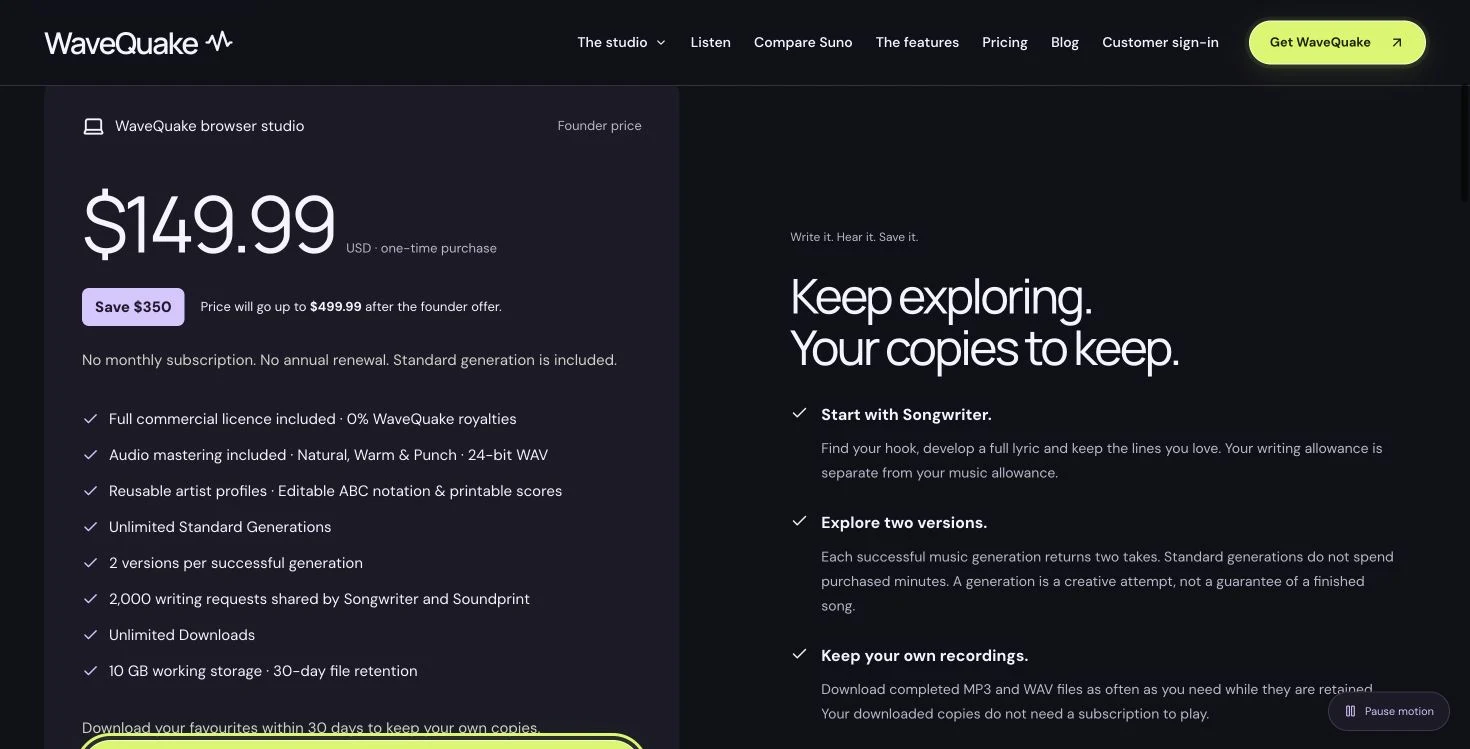
Standard music creation and the writing allowance are separate. Automatic cover-lyric extraction was described as included in the live form. The pricing page also describes a commercial licence; its scope covers rights WaveQuake can grant, so a source recording with third-party material still needs the relevant permissions. The commercial-use page explains that scope.
A useful way to finish an unfinished idea
WaveQuake's strongest appeal is how little of the song has to be settled at the beginning. A melody can lead. Lyrics can lead. A voice memo can keep a fleeting idea alive long enough for you to develop it. The studio then gives those starting points a structured route toward two recordings you can compare.
Start with one idea and one clear direction. If the recording contains the hook you care about, use Covers. If the words are ready but the music is open, start in Create. If the tune is still a hum, use Voice memos to keep the reference and build from it.
For us, that is the reason to explore the feature: it makes an incomplete musical idea actionable. The next step is small enough to try, and the two-version result gives you something concrete to hear, compare and improve.
Questions readers ask.
The Covers workspace accepts a reference recording, reviewed lyrics and a musical direction. It offers two melody directions and creates two versions on a successful request. The live upload form showed a one-second-to-five-minute reference range. The result is a new interpretation, so assess how closely it follows the source by listening.
Yes. Use Create a song, choose the write-or-paste option, add your lyrics and describe the music. We completed that route with original lyrics and received two playable versions. Without an audio reference, the words do not specify an existing melody; the generation creates one using your direction.
The live Voice memos workspace offers a browser recorder, audio uploads and a route from a saved recording into song creation. It lets you add lyrics and a sound to your melody idea. The studio says melody and structure can vary, especially with short hums. Automatic note transcription is not part of this workflow.
Yes. Suno's own Covers documentation describes using an uploaded singing, humming or instrumental recording. The useful comparison is how each workflow handles your reference and creative direction. It would be inaccurate to describe humming input as something Suno cannot do.
Covers starts with an audio recording. Soundprint starts with an artist reference and creates an editable musical direction describing qualities such as genre, groove, instruments and production. Apply that direction with your own lyrics to make an original song. The two features address different starting materials.
The melody control asks the generation to keep the main idea or stay closer to the arrangement. It does not promise identical notes or a copied singer. The Voice memos interface also explains that melody and structure may change. Compare the versions against the musical idea you wanted to preserve.
The studio and pricing page describe two versions per successful generation and show MP3 and WAV controls for completed results. Download the files you want while they are retained. The displayed retention period was 30 days, and the full offer included Unlimited Downloads of retained files.
The pricing page displayed a $149.99 USD one-time founder purchase when we checked on 30 October 2026, with no monthly subscription or annual renewal. It included Unlimited Standard Generations and 2,000 shared writing requests. Use the current pricing page to confirm the offer and its terms before purchasing.